
A view is a saved way of showing a set of elements, with its own view type, filters, and sorting. A folder is a container in the workspace navigation that groups views.
How views work
A view doesn't hold elements. It shows the elements of the workspace that match its filters, in the form its view type sets. In older articles and in the View Explorer permission, the part of ITONICS with your elements and views is called the Explorer.
The same element can appear in many views. When you change an element, for example its status or a property value, every view that includes it shows the change. To learn more about elements, see Understanding elements.
View types
Each view has one view type, which you select when you create the view from the workspace navigation.
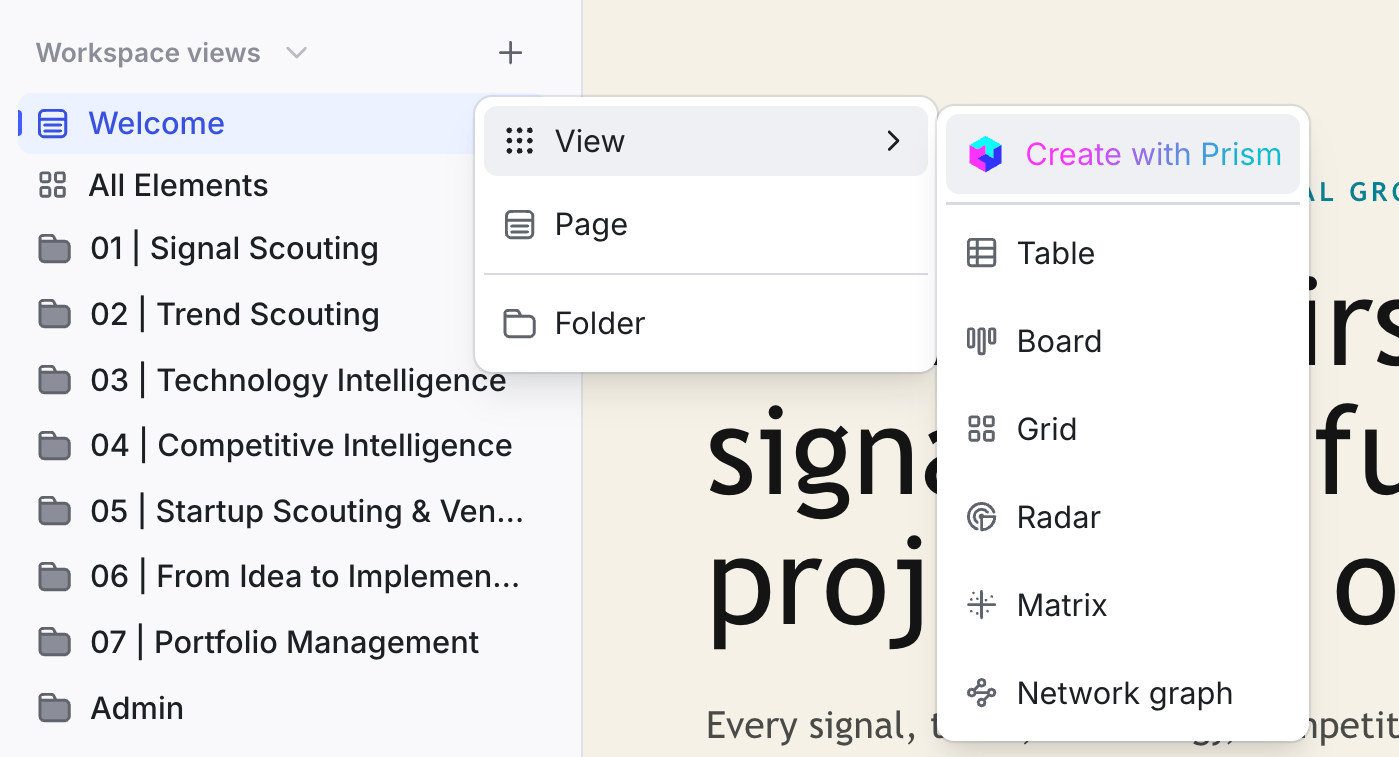
| View type | Good for |
|---|---|
| Table | Comparing elements in rows and columns and editing many at once. |
| Board | Following elements through stages, for example in a project portfolio. |
| Grid | Browsing elements as cards. |
| Radar | Showing trends and technologies by segment and distance from the center. |
| Matrix | Positioning elements along two dimensions to compare and prioritize them. |
| Network graph | Showing how elements relate to each other. |
To create, change, or delete views, see Create and manage views.
Folders and the workspace navigation
Folders group views by use case, such as a team, a topic, or a stage of your process. A folder can also hold pages.
Together, folders, views, and pages make up the workspace navigation, and their order decides what people see first. To set up the navigation, see Configure workspace navigation. To work with folders, see Create and manage folders.

Sharing and favorites
- To share a view or page with colleagues, see Share elements, views and pages.
- To keep the views you use most at hand, add them to your favorites from their menu in the sidebar.