
Arrange the views, pages, and folders in the sidebar of a workspace, and decide what people see first when they open it. To learn how views and folders work together, see Understanding views and folders.
Arrange the workspace navigation
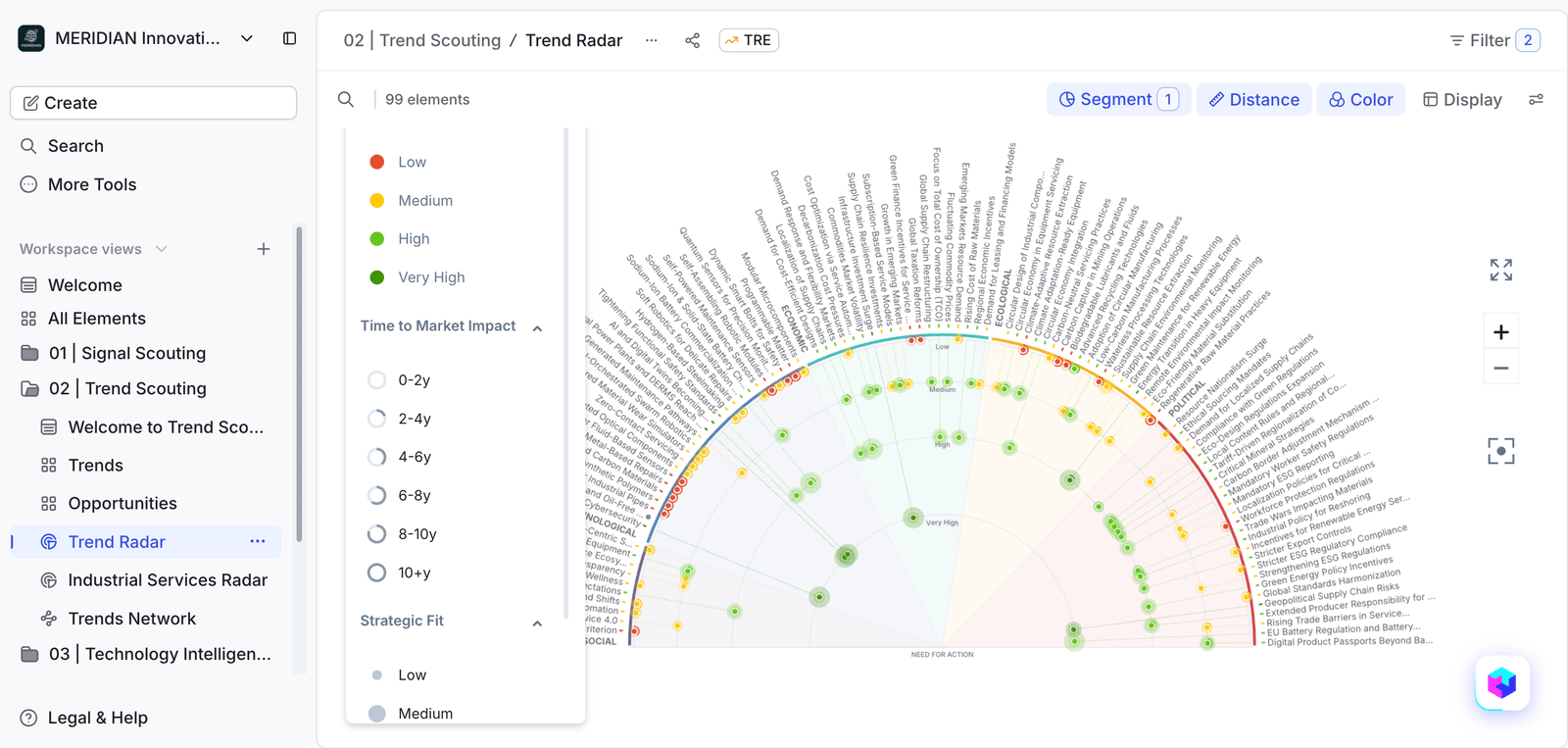
In the sidebar, find Workspace views.
It lists the views, pages, and folders of the workspace in the order people see them. Click a folder to show what's in it.
To add an item, click the plus icon next to Workspace views, and select View, Page, or Folder.
The new item appears in the navigation.
Drag a view, page, or folder to the place you want.
You can drop it above or below a folder, between two folders, or inside a folder. This also works for All Elements.
Drag the view or page that people should see first to the top of Workspace views.
It becomes the landing page of the workspace. If a folder is at the top, people land on the first view in that folder.
Tip: Build the navigation around use cases rather than view types: give each use case, such as trend scouting or portfolio management, its own folder with the views and pages for that work. Number the folders in the order people work through them, so the navigation also shows your process.
Note: If you move one of your private views to the top of Workspace views, it becomes your own landing page. Other people still land on the first item they can see.
To create and set up the items themselves, see Create and manage views, Create and manage folders, and Create and manage pages. A page at the top works well as a welcome page for the workspace. See Create and manage landing pages.
Result
Everyone who opens the workspace through its link lands on the item at the top, and sees the views, pages, and folders in the order you set.