
Create a page in a workspace, write its content in HTML, and change, duplicate, or delete it later. To learn what pages are, see Overview of pages.
Create a page
In the sidebar, click the plus icon next to Workspace views, and select Page.
Under Page name, enter a name.
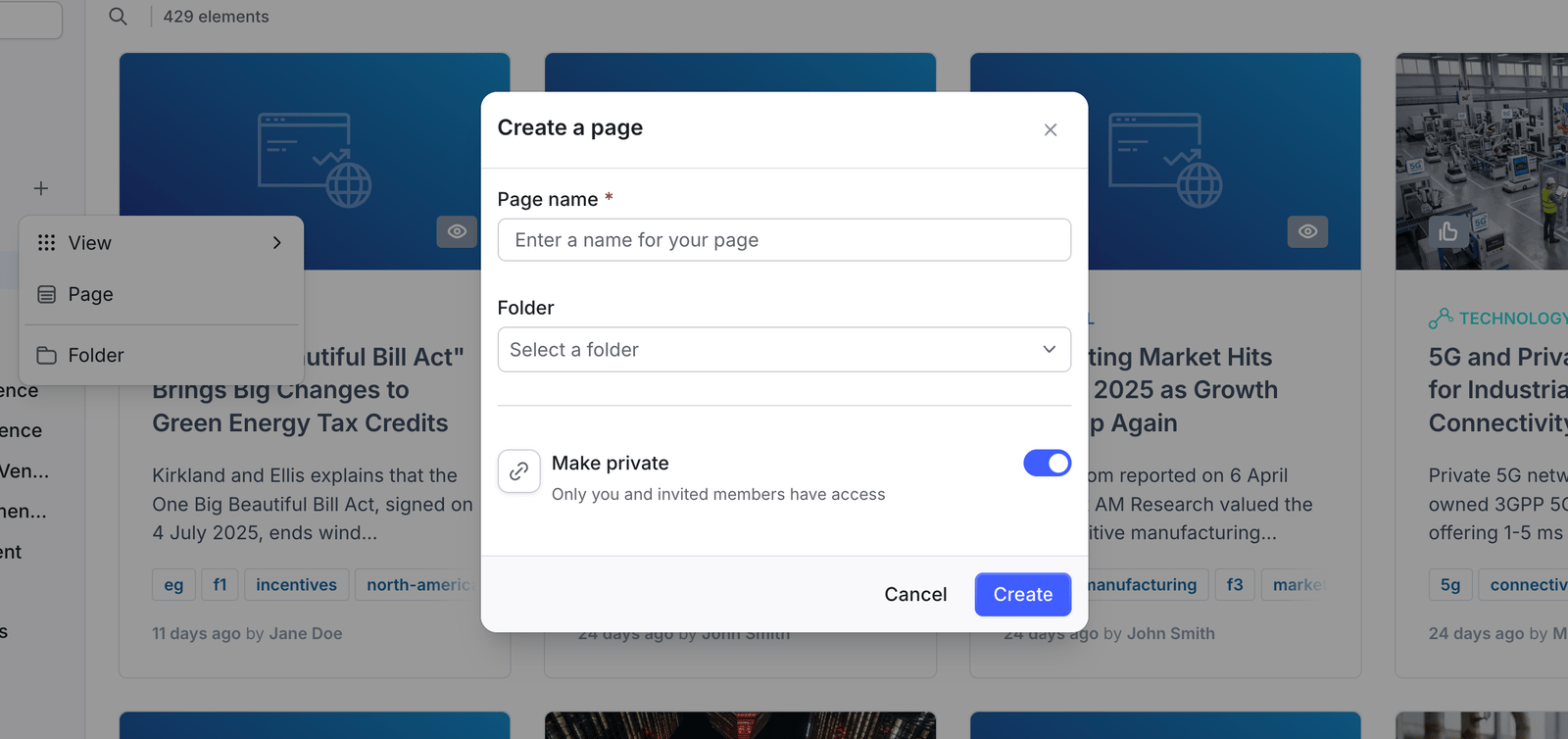
Optional: Under Folder, select the folder the page goes in.
Turn off Make private if everyone in the workspace should see the page.
New pages are private: only you and the members you invite can see them.
Click Create.
The page opens with sample content, and it appears at the end of Workspace views.
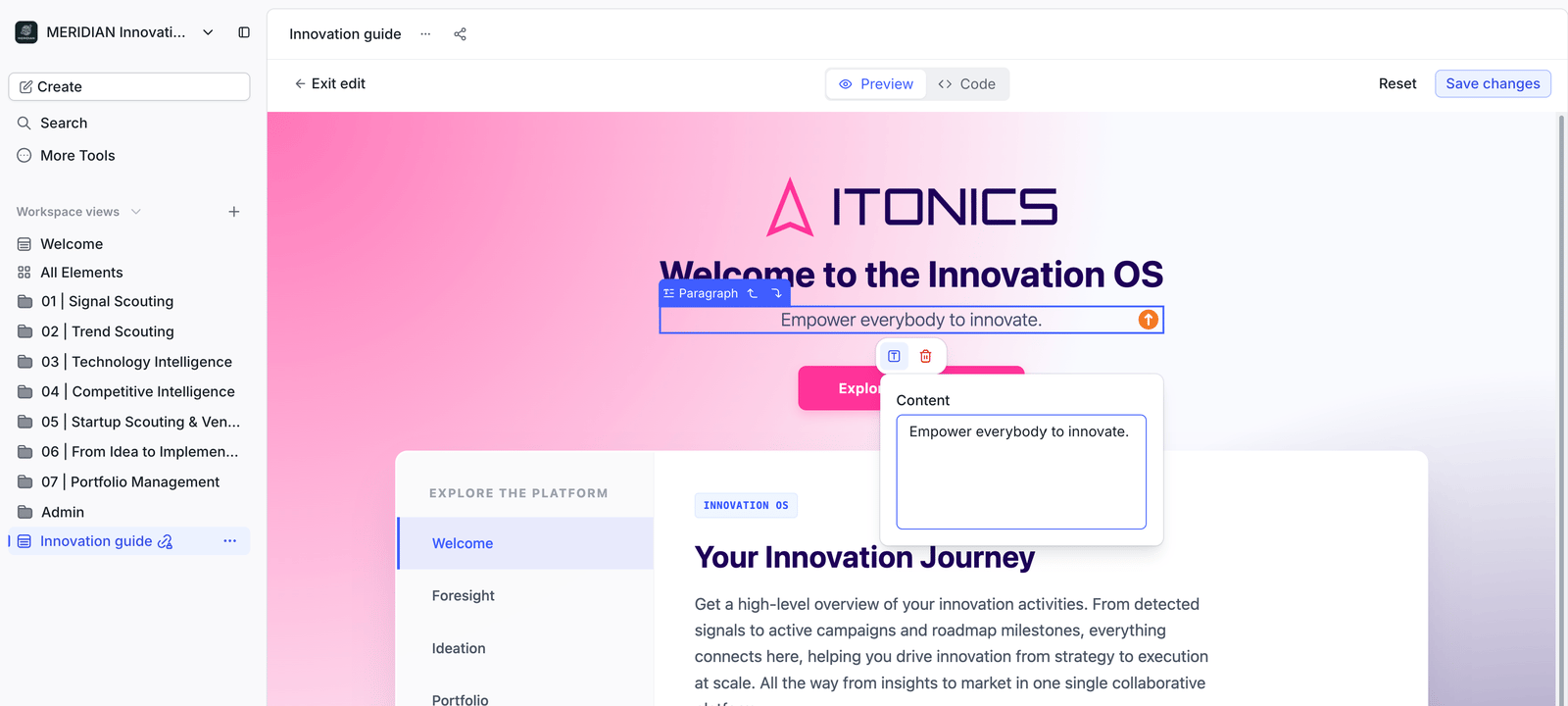
To edit a page, open it and click Edit at the top right. On the Preview tab, click an element and use its toolbar: Edit content changes the text, the link icon sets where a link or button leads (a page of the workspace or a URL), and the trash icon deletes the element. On images, you can upload a new image. On the Code tab, you edit the HTML directly.
After a change, Save changes and Reset appear at the top right. Saved changes go live right away for everyone who can see the page. Reset discards everything since the last save.
The code editor accepts plain HTML with Tailwind classes. Use Tailwind classes for all styling; other styling may be removed. You can write the HTML yourself or have an AI assistant write it. For good results, put this into your prompt:
- The use case: the exact scenario the page covers. Be as specific as you can, because the assistant uses every part of the prompt.
- Your organization: its name and the goal of its innovation work.
- The buttons and links the page needs, for example a link to a radar or a form.
- Optional: technical details, if you have them.
- Your company's style guide as an attachment, so the design matches your online presence. Check first whether your company's rules allow you to upload it to an AI assistant.
Start the prompt with these rules, so that the result works in the code editor:
Create HTML code to paste into an online code editor. The code editor has strict guidelines that you have to follow: only ever use regular HTML with inline Tailwind; if state management is needed, use CSS-only Tailwind group variants; do not include a <head>; replace <body> tags with <div>; never use <style>, <link>, or <script> tags, because the code editor removes them and the code breaks.
When you paste a full HTML document, the code editor removes the head section and turns the body into a div. If the page doesn't display correctly after pasting, check the code from the top:
- Remove
<style>,<link>, and<script>tags. Use Tailwind classes for styling instead. - Remove
<!DOCTYPE html>and the<html>tag. - Remove the
<head>section, including its tags. Keep<header>, which is part of the page. - Replace
<body>with<div>, and</body>with</div>. - Remove
</html>at the end.
The code now starts with <div> and ends with </div>.
To manage a page, open it and click the more icon next to its name:
| Action | What it does |
|---|---|
| Add to favorites | Adds the page under Favorites at the top of the sidebar. Only you see your favorites. |
| View settings | Changes the page's name, its folder, and whether it's private. |
| Duplicate | Creates a copy of the page. |
| Delete | Deletes the page. |
To move a page in the navigation or make it the first thing people see, see Configure workspace navigation.