
Use the sidebar on the left to switch workspaces, create elements, open tools, and move between the views of a workspace. For how the sidebar and the main panel fit together, see Introduction to navigating ITONICS.
Navigate the main menu
Click the workspace name at the top of the sidebar to open the workspace menu.
Select Switch workspace to move to another workspace you have access to. By default, Workspace Admins also see Workspace settings, and Application Admins see Organization settings. Everyone can open their Profile, My clips with the content they clipped from the web, and Logout.
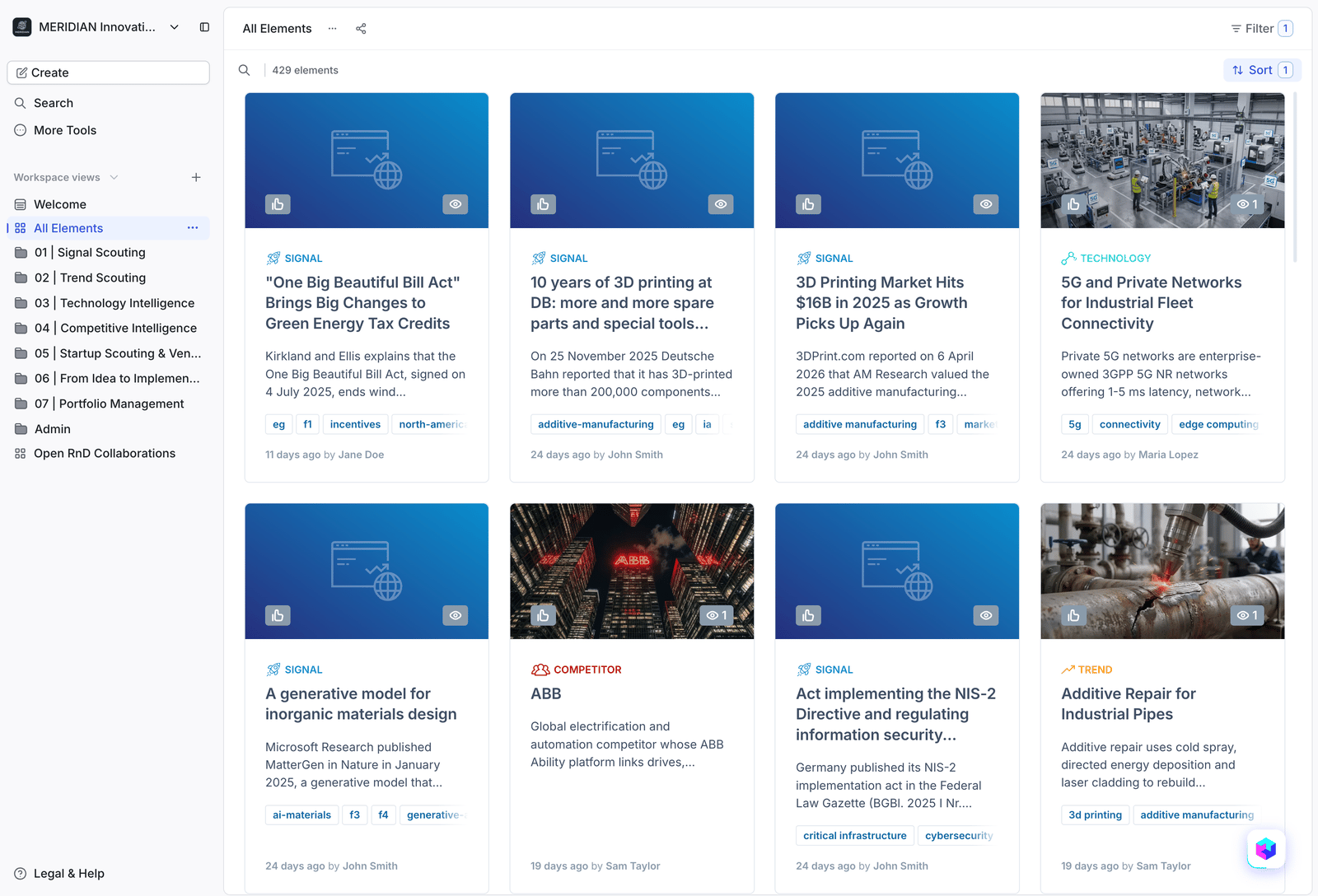
Click Create to add an element.
Select one of the element types your administrators made available, or select Import from Excel or Copy from another Workspace.
Select Search to find elements in the workspace.
Select More Tools to open Report, Roadmap, Workflows, or Sites.
To keep a tool in the sidebar, click the pin icon next to it. The pin applies only to you. Which tools you see depends on your organization's subscription; to add one, contact your account manager at account_manager@itonics-innovation.com.
Under Workspace views, click a folder to open it, then click a view to show it in the main panel.
If you have favorites, they're listed above, under Favorites.
Select Legal & Help at the bottom of the sidebar to read the policies your organization has set up, open the Help center, or Report illegal content.
Optional: To give the main panel more room, click the sidebar icon next to the workspace name. To change the sidebar's width, drag its right edge.
The Prism button at the bottom right opens Prism next to the view; see Overview of Prism.
For the workspace menu, see Switch workspaces, Manage workspaces, Manage organization profile and settings, Manage your user account settings, and Overview of the Webclipper.
For the rest of the sidebar, see Search elements and Create and manage views. To arrange the folders and views of a workspace, see Configure workspace navigation.