
Your profile holds your name and picture, and the settings that change how ITONICS looks to you: the language, the number format, and how Prism applies its suggestions.
Manage your user account settings
Click the workspace name at the top left and select Profile.
The Profile page opens. Your email address is shown but can't be changed here.
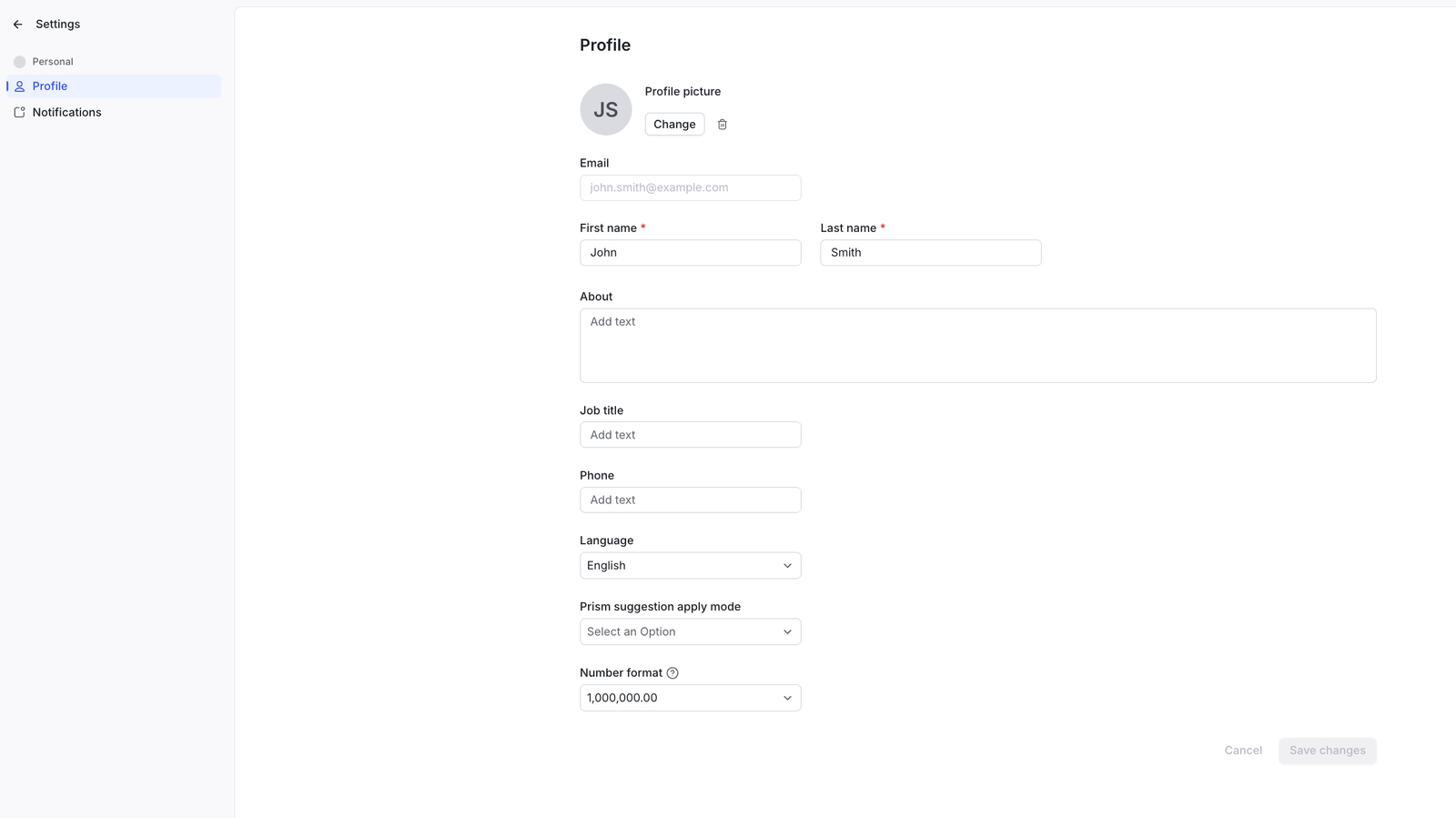
Optional: To set a profile picture, click Change and select an image. To remove it, click the delete icon next to Change.
Your picture is shown wherever your name appears in ITONICS. Without a picture, only your initials are shown.
Enter your First name and Last name, and optionally About, Job title, and Phone.
Optional: Under Language, select English, Deutsch, or Français.
On your first sign-in, ITONICS uses the language of your browser. The language you select here takes priority.
Optional: Under Number format, select how numbers and currencies are written for you, for example 1,000,000.00 or 1.000.000,00.
By default, the number format follows your language.
Optional: Under Prism suggestion apply mode, select Ask every time or Automatically apply every time.
Click Save changes.
Your number format decides which characters separate thousands and decimals. It changes only what you see, never the stored value, so a colleague with another format sees the same figures in their own notation, for example 1,500.50 instead of 1.500,50. It applies wherever numbers are shown, such as views, element details, sites, Excel exports, and email notifications. While you edit a number, only the decimal separator is shown.
How many decimal places a property shows, and whether it groups thousands at all, is set on each property. See Number properties. To color the highest or lowest values of a number column instead, see Set up a table view.
Note: If your organization uses single sign-on, some profile fields can be filled in from your company's identity provider. See Populate user profile attributes via SSO.
For what the Prism options do, see Use the Prism chat and queue requests. To set which emails ITONICS sends you, see Adjust your notification preferences. To sign in, see Sign in to ITONICS.