
Your notification preferences decide which emails ITONICS sends you. You can turn all email notifications on or off, or only single categories and notifications.
Adjust your notification preferences
Click the workspace name at the top left and select Profile.
Select Notifications.
The page lists the notification categories. Click a category to see its notifications, or click Expand all. To find a notification by name, use the search field.
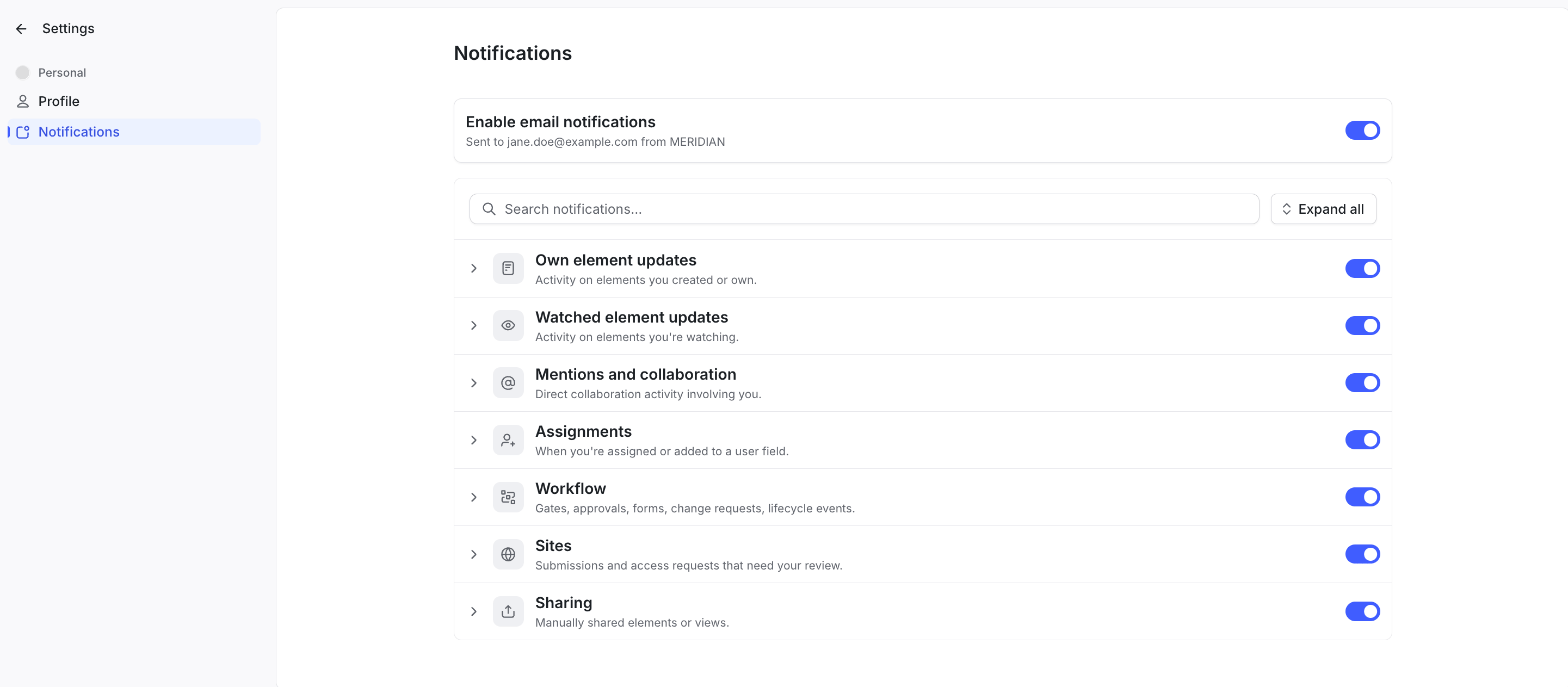
To stop all email notifications, turn off Enable email notifications.
While it's off, you can't change single categories or notifications.
To stop a whole category, turn off its toggle. To stop a single notification, expand its category and turn off the notification's toggle.
Your changes are saved right away. The page has no save button.
| Category | You get an email when | Notifications |
|---|---|---|
| Own element updates | Something happens to an element you created or own. | Published, archived, rated, relations, liked, commented, property updated |
| Watched element updates | Something happens to an element you watch. | Published, archived, rated, relations, liked, commented, property updated |
| Mentions and collaboration | Someone mentions you with @ in a comment, or reacts to a comment you wrote. | Mentioned in comment, Reaction on comment |
| Assignments | Someone adds you to a user property of an element. | Added to user search field |
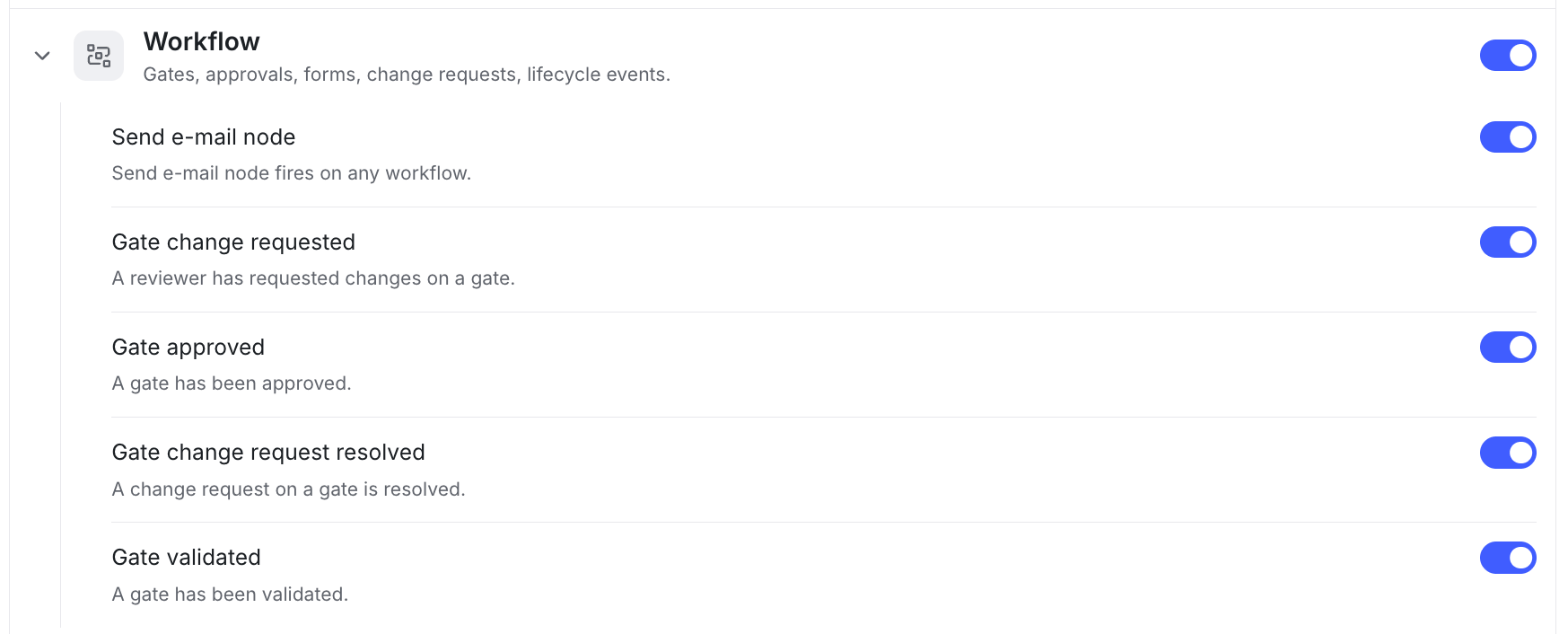
| Workflow | A Send email node in any workflow emails you, or a manual review needs changes, is approved, resolved, or validated. | Send e-mail node, Gate change requested, Gate approved, Gate change request resolved, Gate validated |
| Sites | A site submission is assigned to you for review, or someone requests access to a site you own. | New site submission assigned, Site access request |
| Sharing | Someone shares an element or view with you. | Share Link |
Relations means that someone relates your element to another element, or references it from another element. To learn how to watch elements, see Like and watch elements. For the workflow nodes, see Automation nodes and Manual nodes.
Note: Some emails are always sent, whatever your preferences, for example invitations, sign-in emails, and the email that your Excel export is ready to download.
Tip: To get to your preferences from an email, click Manage notifications at the bottom of the email.