
Discuss an element with your colleagues in its comments: reply and react, mention people with @ so they're notified, and reference other elements with #.
Before you start
The element type must have the Comments tab switched on. See Configure the layout of an element type. Whether you can comment, and edit or delete other people's comments, depends on the permissions of your role in the workspace. See Permission reference.
Comment on an element
Write a comment
Open the element and click the Comments tab.
The tab shows the number of comments in brackets.
Click the comment box.
The editor opens with the formatting tools of a rich text property, such as lists, links, tables, images, and files, plus Ask Prism. Type / to add blocks.
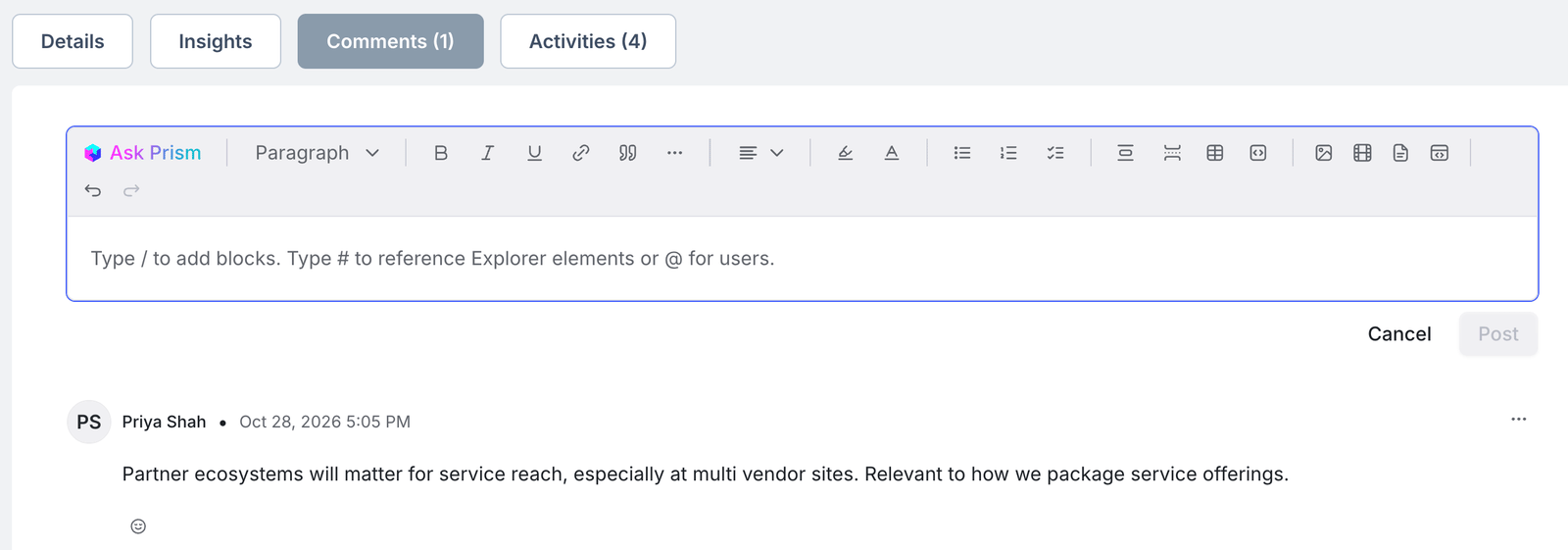
Write your comment. To mention a person, type @ and select them. To reference an element, type # and select it.
A referenced element shows as a link that opens it.
Click Post.
Cancel discards the comment.
Reply, react, edit, or delete
To reply, click Reply under the comment.
To react, click Add reaction under the comment and select a reaction: Thumbs Up, Innovative, Inspirational, Hot, Important, or Skeptical.
Point to a reaction to see who reacted.
To change or remove a comment, click More options (⋯) next to it and select Edit or Delete.
A deleted comment can't be restored.
The editor works like a rich text property. See Rich text properties. To comment without leaving a table, see Edit data in table views.
Result
Your comment shows in the Comments tab. Mentioned people, the person who created the element, and people who watch it are notified, and so is the writer of a comment you react to. To set which emails you get, see Adjust your notification preferences.