
Like an element to show your support, and watch it to get notified when it changes. You can do both on the element itself or in a grid or table view.
Before you start
Anyone who can open an element can like and watch it.
Like or watch an element
In the stack view or on the details page
Open the element in the stack view or on its details page.
Under the title you find Watch, the like button (thumbs up), and Share.
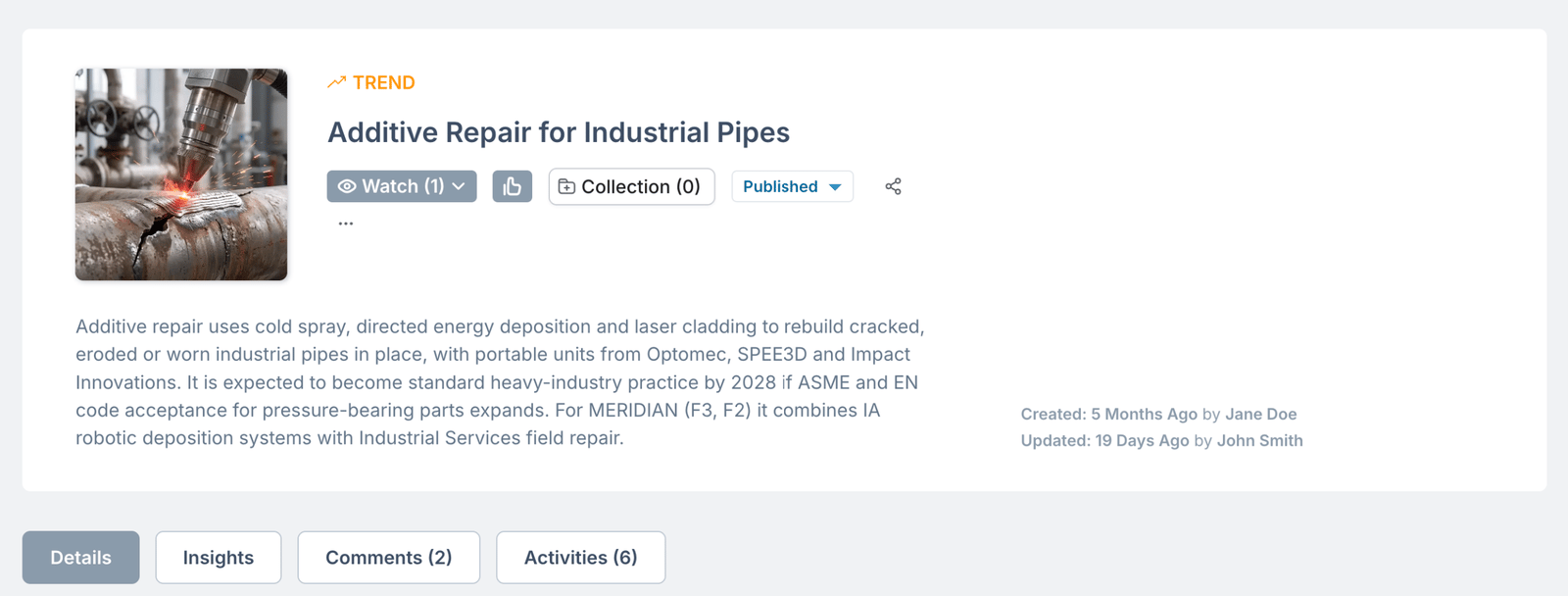
To like the element, click the like button. To remove your like, click it again.
If others liked the element, the button opens the list of people who liked it. Like the element or remove your like from the top of the list.
To watch the element, click Watch.
The button now shows that you watch the element. If others watch it too, the button shows their number and opens the list of watchers. Start or stop watching from the top of the list.
In a grid or table view
In a grid view, click the like button (thumbs up) or the watch button (eye) on the card image. In a table view, open the row menu (⋯) and select Like or Watch.
Click a button again, or use the row menu again, to undo. The watch button on a card shows the number of watchers; to see who liked an element, open it.
To watch several elements at once, select their checkboxes and click Watch in the bar at the bottom of the view.
You can watch up to 20 elements at once. The same bar lets you stop watching the selected elements.
To show only the elements you watch, click Filter, then Global Filters, and select Watched Elements.
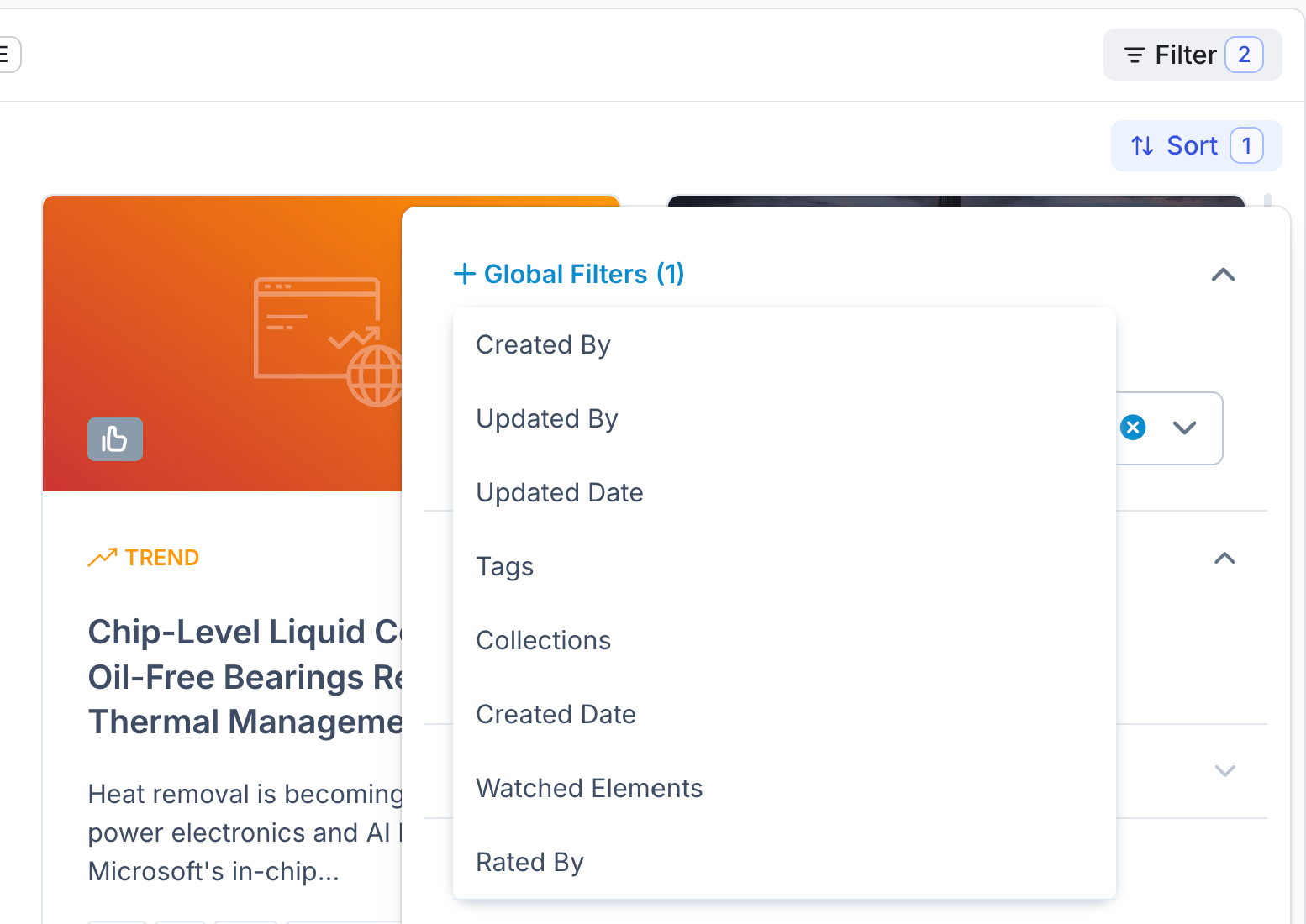
To find the most liked or watched elements, sort the view by Likes or Watchers. In a table view, you can also add Likes and Watchers columns. See Sort elements.
For more on selecting cards and filtering, see Set up a grid view and Filter elements. To open elements, see View content.
Note: You can't like or watch an archived element.
Result
When you watch an element, you get an email when it's published, archived, rated, liked, commented on, related to other elements, or when a property changes. The person who created an element gets an email when someone likes it. To select which emails you get, see Adjust your notification preferences.