
Narrow a view to the elements you need, by status, creator, element type, or property values. Filters belong to the view, so saving them changes the view for everyone who can open it.
Filter elements
In a view, click Filter at the top right.
The number next to it shows how many filters are on.
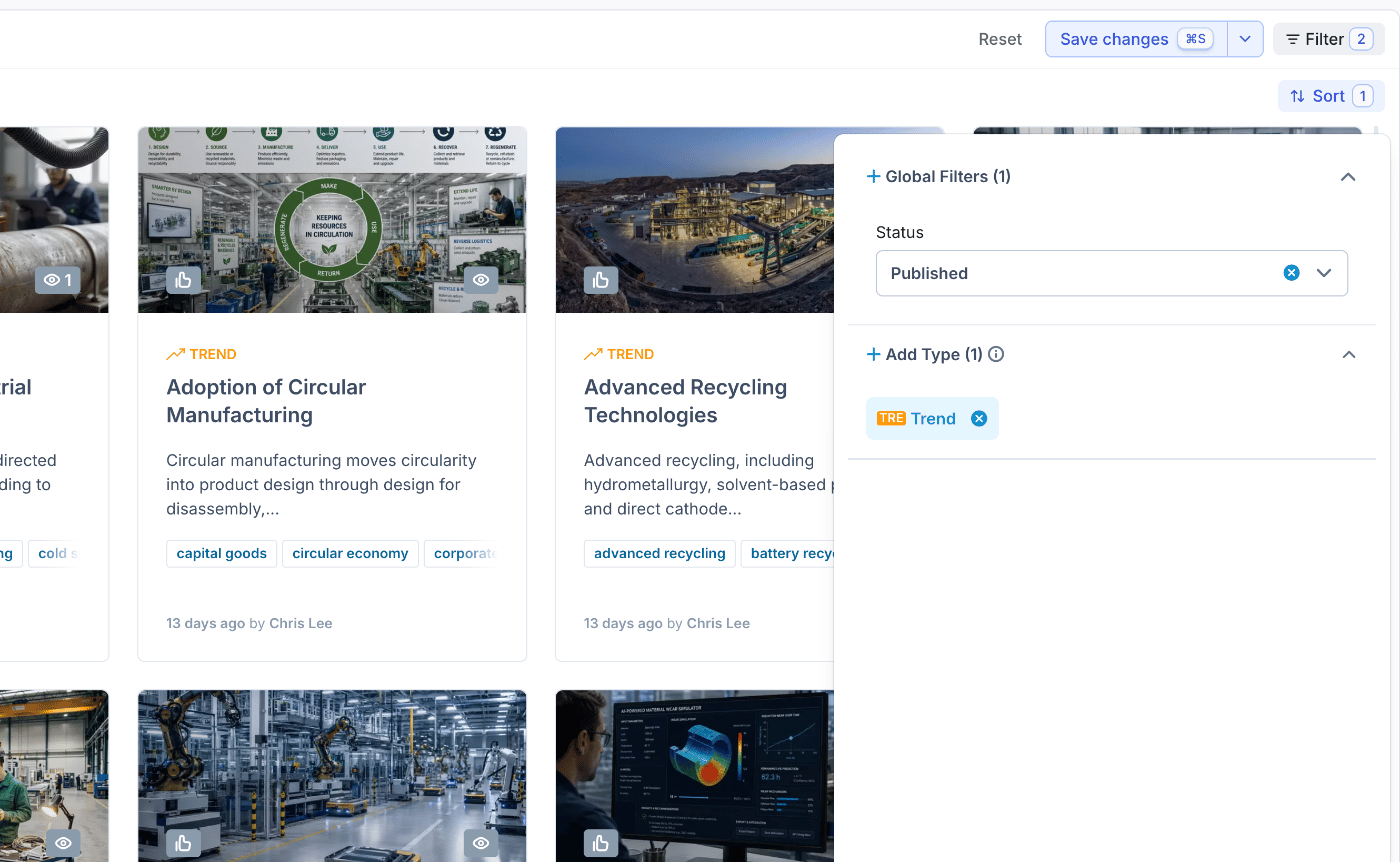
Optional: Click Global Filters and select a filter, such as Created By, Updated Date, Tags, or Watched Elements.
Global filters work for every element type: Status, Created By, Updated By, Created Date, Updated Date, Tags, Collections, Watched Elements, and Rated By. Several values in one filter combine with "or", and Updated Date counts changes to the element's content, such as its title, summary, a property value, or its status, but not comments, ratings, likes, or watching. Most views start with Status set to published, so drafts and archived elements are hidden.
Optional: In a filter by person, such as Created By or a user property, select Current User.
One shared view then shows each person their own elements, for example the ones they evaluate or own.
Optional: Click Add Type and select one or more element types.
The view then shows only elements of these types, and the types also show next to the view name. With several types, click a type's name to switch to its property filters.
Optional: Click the filter option of a type, such as Add Trend Filter, and select a property and its values.
Every property filter offers three operators: is (the selected values), is not (all other values), and is empty, or (no value, or one of the selected values). For a relation property, this finds elements that are related to the selected elements, not related to them, or not related at all.
Click Save changes at the top right, or select Save as new view next to it to keep a copy for yourself.
Save as new view asks for a name, a folder, and whether the view is private.
To remove a single filter, click the x next to it. To discard all filter changes you haven't saved, click Reset. Filters work within the current workspace only.
To find your own drafts, set Status to draft and Created By to Current User. To learn how people are stored on elements, see User properties.