
Automation nodes run an action as soon as an element reaches them, without anyone having to act, and then pass the element on to the next node. To learn how nodes fit into a workflow, see Overview of workflows.
Types of automation nodes
| Node | What it does |
|---|---|
| Convert element | Converts the element to another element type, optionally archiving the original and copying its comments and relations. To convert to different types depending on the element, put a routing node before several Convert element nodes. |
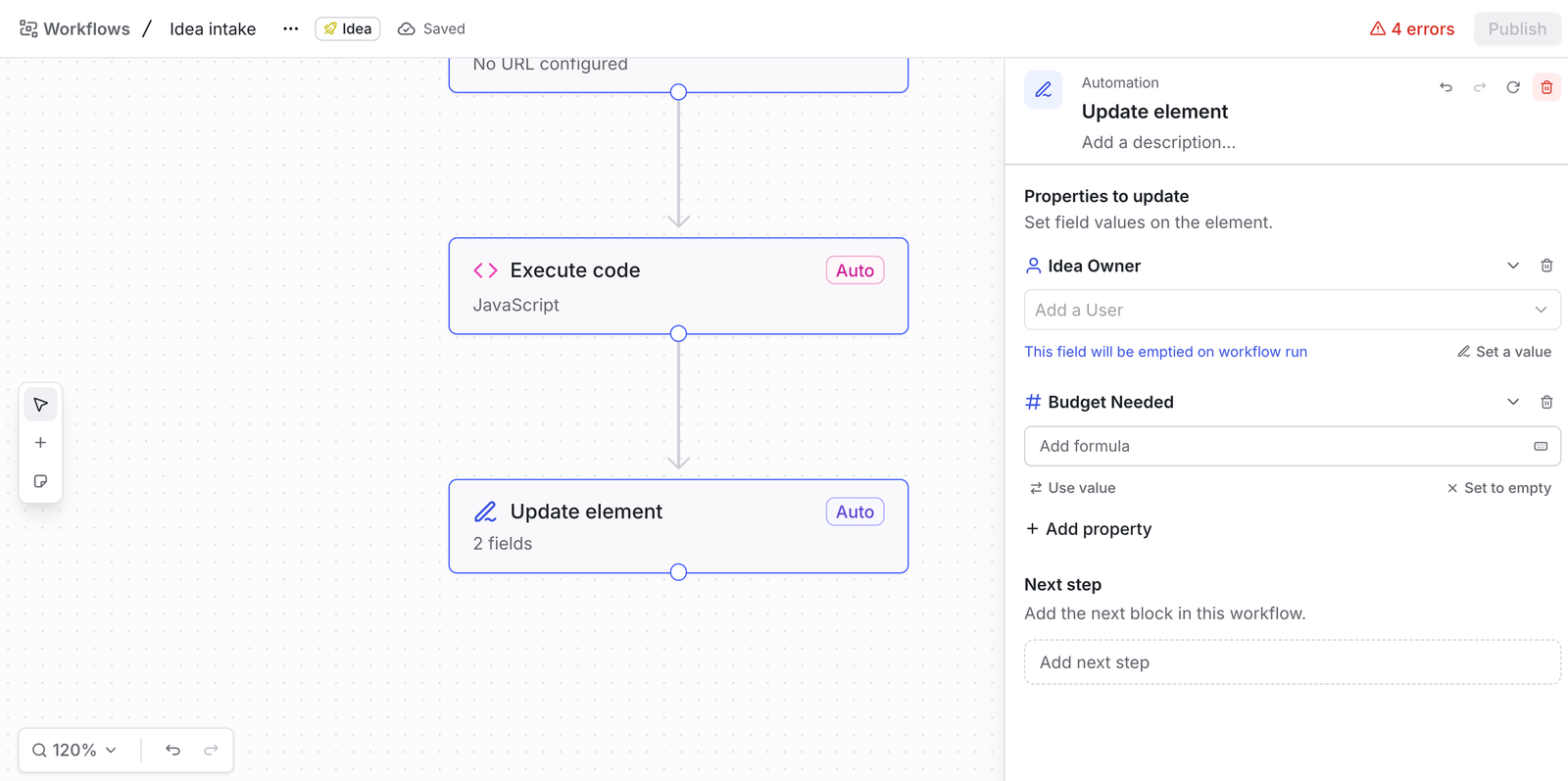
| Update element | Sets, calculates, or clears property values of the element, for example a budget, an owner, or the dropdown property behind a lifecycle, which moves the element to another phase. |
| Create element | Creates a new element of another or the same element type, with the values you set. Later nodes can use the new element. |
| Change status | Sets the element's status to Draft, Published, or Archived, for example to publish an idea once its review is done. |
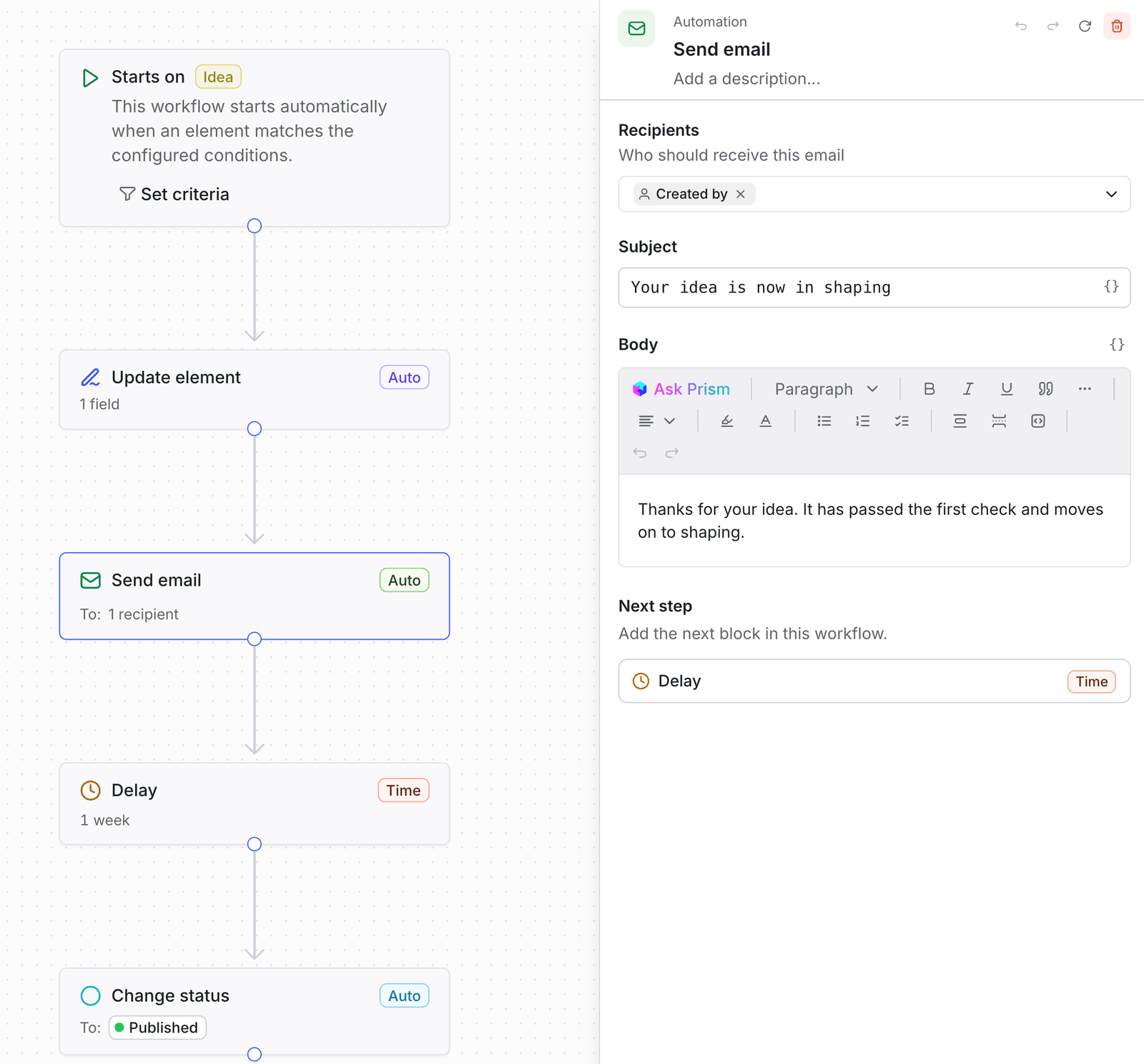
| Send email | Sends an email with a subject and a body to the recipients you set. |
| HTTP request | Calls an external service. Later nodes can use the response. |
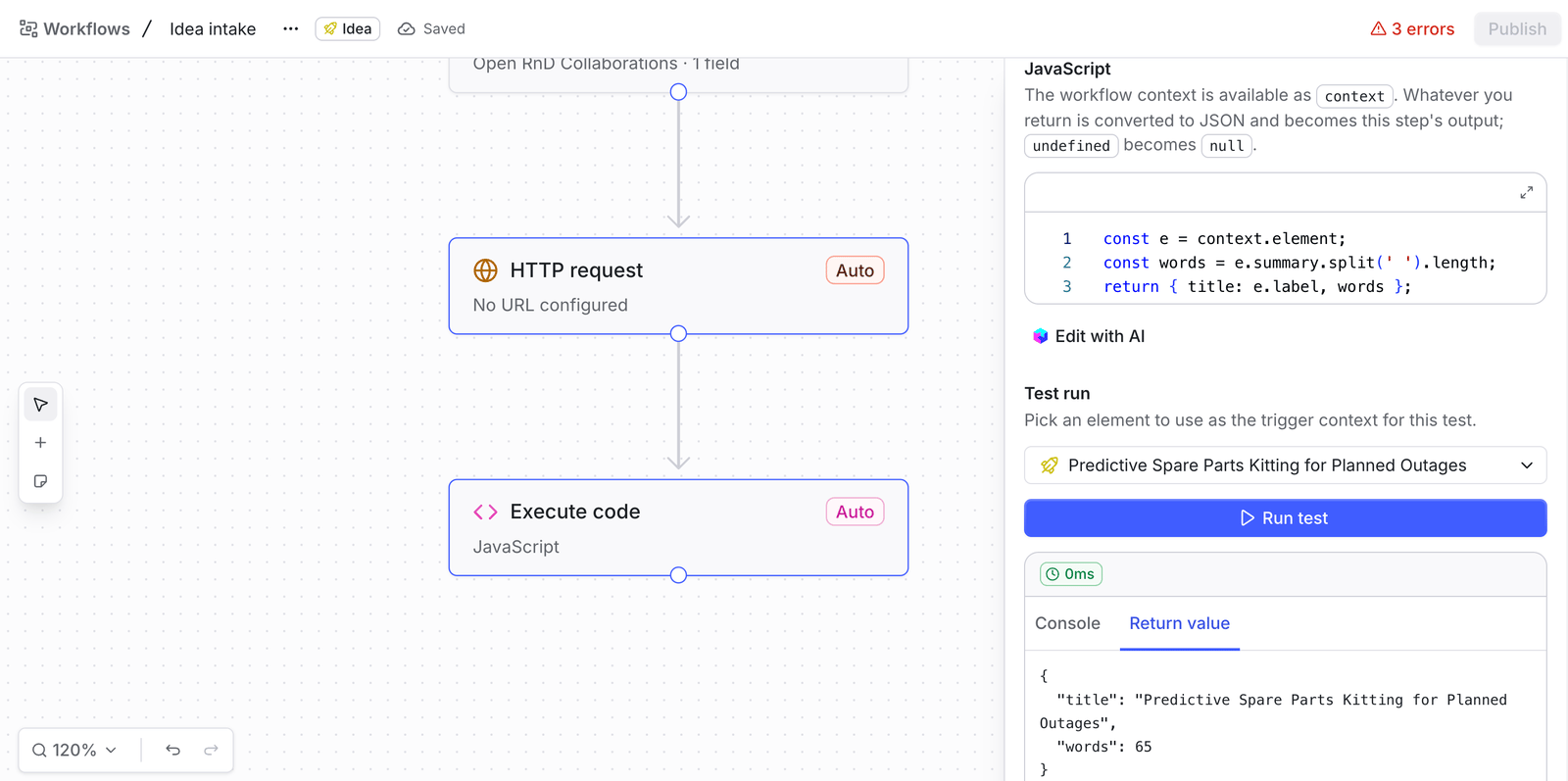
| Execute code | Runs your own JavaScript. Later nodes can use what the code returns. |
| Delay | Pauses the workflow for a set number of days, weeks, or months. |
Nodes can also use the workflow context: values of the element and results of earlier nodes. See Workflow context.
On the canvas, automation nodes are marked Auto, and a delay is marked Time. Like every node, you add them in the workflow builder. See Create a workflow.
The result of each automation, for example a sent email or a status change, is logged in the element's Activities tab. See View an element's change history.
Setting property values
Update element and Create element nodes set values row by row. Every property type can be set, including user, tag, and relation properties. Rating properties can't: a rating records a person's judgment, so a workflow doesn't rate on anyone's behalf.
Each row takes a fixed value or a formula, which is calculated for each element when the node runs and can use the workflow context. In formula mode, click Use value to go back.
With Set to empty, the row clears the property, for example to remove the person in a user property. The row then reads "This field will be emptied on workflow run". To undo it, click Set a value.
Absolute and relative dates
When an Update element node sets a date property, the date can be absolute or relative. An absolute date is the same fixed date for every element, for example the end of a funding round.
A relative date is worked out for each element when the node runs. It starts from an anchor and adds a number of days:
- Workflow creation: the moment the workflow started for this element.
- Step activation: the moment the element reached this Update element node.
With 0 days, the property gets the anchor date itself. For example, Step activation plus 14 sets a due date 2 weeks after the element reaches the node.
Creating elements
A Create element node creates one element of the element type set in the node. Its required properties are listed first, with Title at the top. Later nodes can use the new element as Created element, and the entry on the Activities tab links to it.
If the node creates elements of the type the workflow runs on, a new element can start the same workflow again. To prevent this, see Workflow best practices.
Calling other systems and running code
An HTTP request node sends a request with the method, URL, headers, and body you set, each of which can use the workflow context. Later nodes can use the response status and the response body.
An Execute code node runs JavaScript, with the workflow context available as context. What the code returns becomes the node's output as JSON, and undefined becomes null. Prism can write the code for you or change it with Edit with AI.
Both nodes have a test run: select an element and click Run test to see the response, the returned value, or an error. If the code uses values of earlier nodes, you enter sample values first. Nothing is saved to the element.
Email recipients
Recipients can be named users or user properties of the element type, including the Created by and Updated by system properties. User properties are resolved when the email is sent, so the element's creator or last editor gets it automatically. A person matched more than once gets the email only once. The subject and body can use the workflow context.
The body is a rich text editor, so you can format the text or let Prism help you write it. See Use the AI text editor. To learn about other ways to keep people informed, see Drive engagement with notifications.
Converting elements
When an element is converted, the target element type may have required properties that the original element can't fill. Those properties get their default values. To set default values, see Create and manage properties.
Later nodes can use the converted element.
Changing a delay later
If you shorten a delay while elements are already waiting at it, the time they've already waited counts. An element that has waited longer than the new duration moves on to the next node right away.