
See who changed an element, what they changed, and when. For what else an element's page shows, see Element structure.
View the change history
Open the element.
Click Activities.
In the side panel, the tab can sit behind the … icon next to the other tabs: click the icon first.
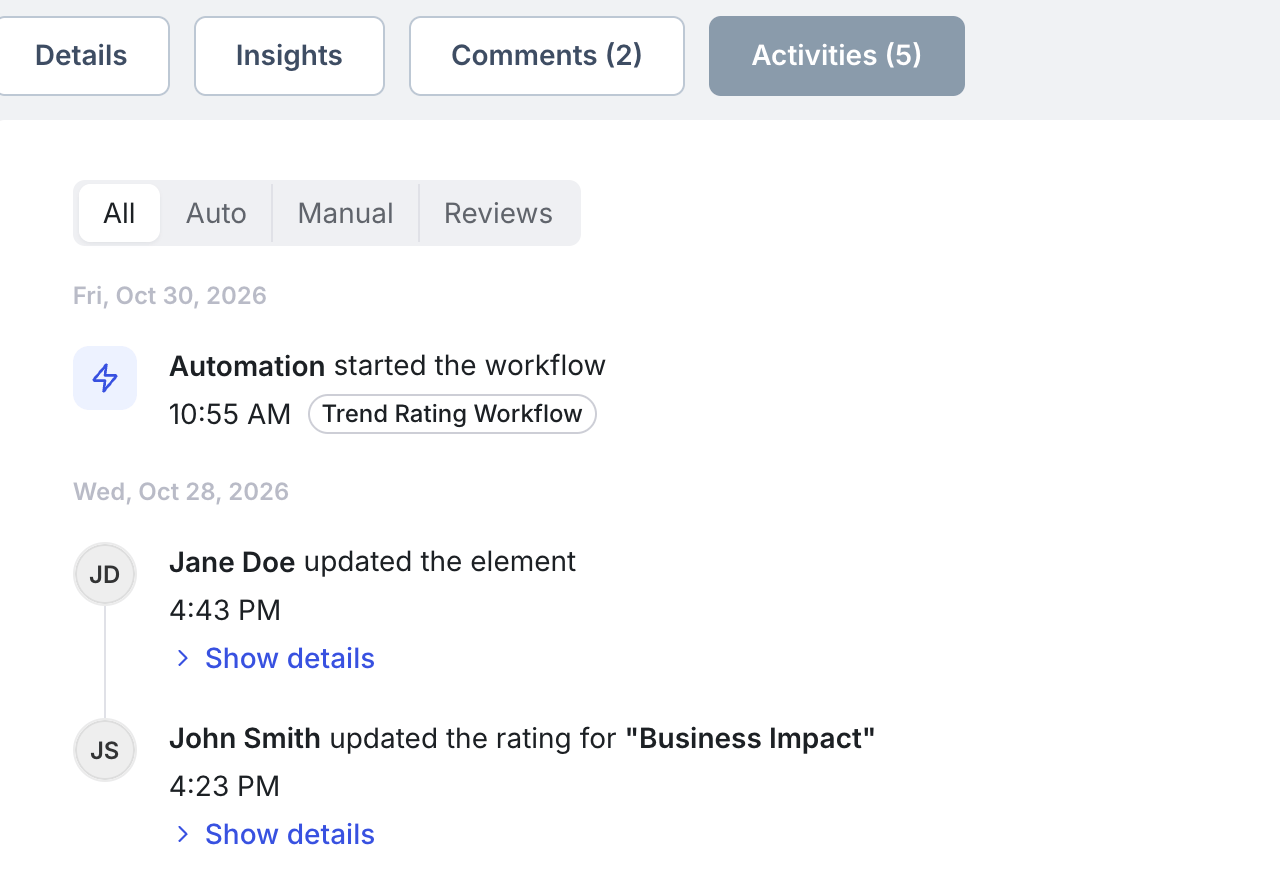
To show only changes made by automations, changes made by people, or review decisions, select Auto, Manual, or Reviews.
The filter covers the whole history, not only recent entries. Select All to show every entry again.
To see the old and the new value of a change, click Show details on its entry.
For a failed workflow step, the details also show the full error message.
Note: Changes to tags aren't recorded on the Activities tab, and neither are changes made through the API, an Excel import, or the ITONICS MCP. For those, only the time and person of the last update change.
Result
The tab lists the changes by date, newest first. Each entry shows who made the change, or "Automation" for automated actions, and when. Entries from a workflow also show the name of that workflow.
Every step of a workflow is recorded, including the ones that automations run: when the workflow started, paused, resumed, completed, or ended, which steps were completed or skipped, form submissions, review decisions, and the results of automations, such as status changes, conversions, sent emails, and HTTP requests with their response status. An element that a workflow created or converted is linked from its entry.
When a form submits a Smart Excel workbook, the entry lists every property the workbook changed. A step that failed, or a workflow that couldn't start, gets an entry with a short reason. To learn how people complete workflow steps, see Apply a workflow to an element.