
A number property stores a numeric value, such as planned resources in hours or a payback period in years. Because the value is a number, ITONICS can filter, sort, and calculate with it.
Number settings
When you create or edit a number property, you set how its values look. A preview shows the result.
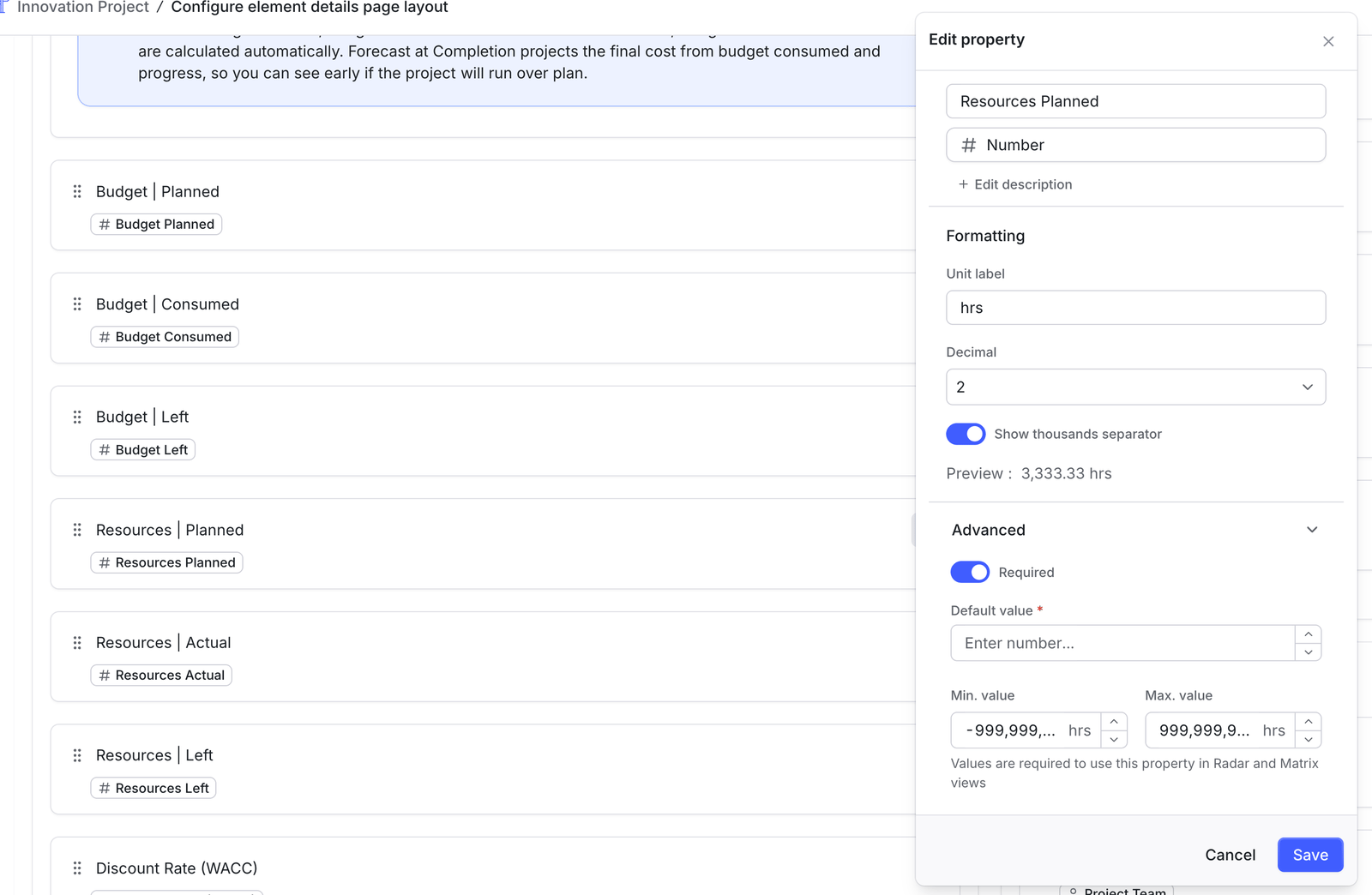
| Setting | What it does |
|---|---|
| Unit label | A short unit shown after the value, such as h, kg, or cm. |
| Decimal | How many digits are shown after the decimal separator. |
| Show thousands separator | Groups the digits of large values in thousands. |
| Required | Makes a value required. The default value is then required too. |
| Default value | A value that new elements are filled in with. |
| Min. value and Max. value | The range of allowed values. The range is optional, but you need it to use the property in radar and matrix views. You can change it later. If you narrow it, values outside the new range are cleared after you confirm. |
Required, the default value, and the range are under Advanced. To create a property, see Create and manage properties.
Currency and percentages
For amounts of money, use a currency property, and for rates and shares, a percentage property. When the unit label of a number property is a currency symbol or a percent sign, its settings show a hint with a link to change the type.
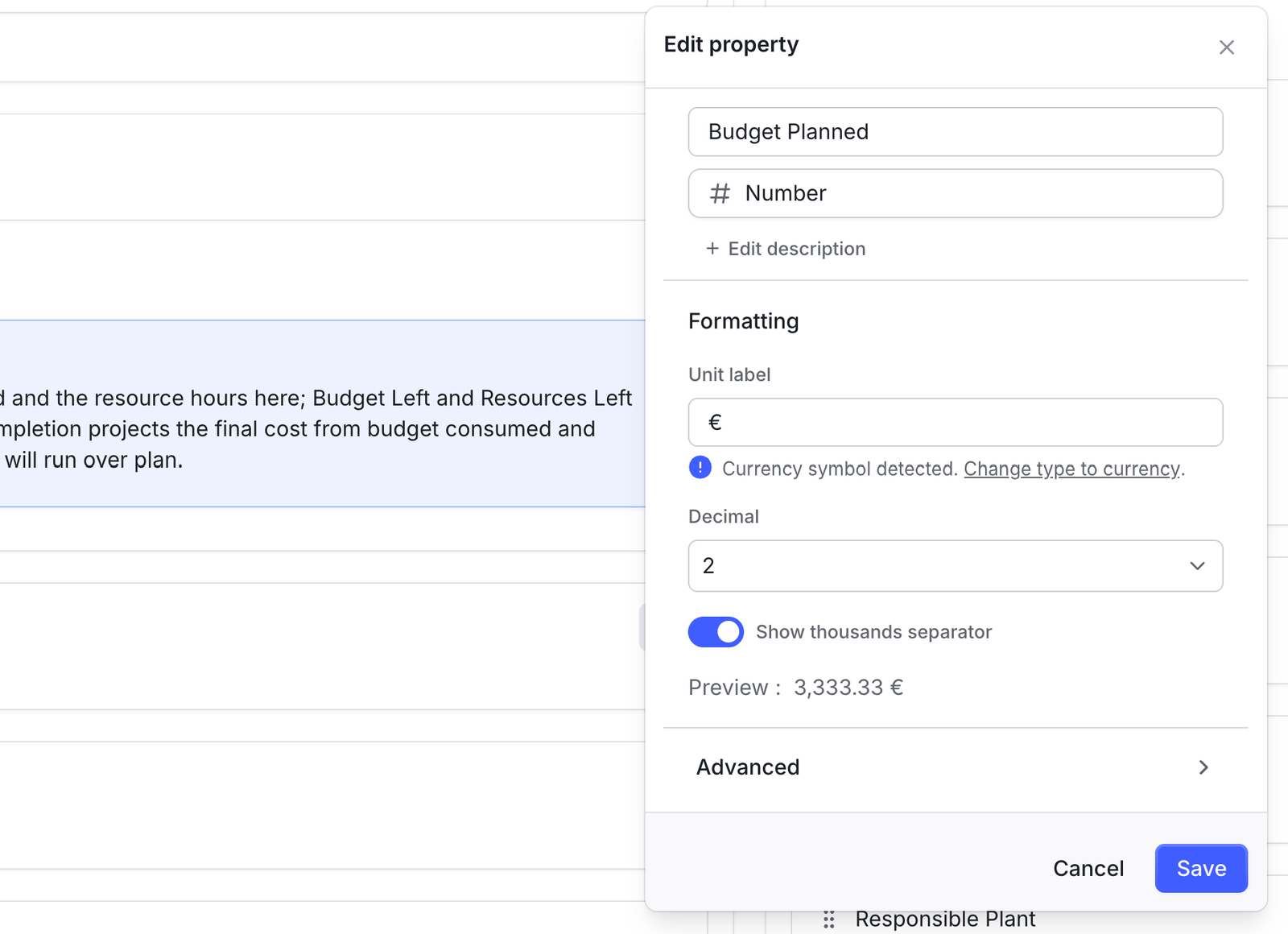
A number property can be converted into a currency or percentage property later, even after people have entered values. The conversion is blocked while workflow criteria, formulas, rollups, or lifecycles use the property.
How numbers are shown
Radar, matrix, and board views show number values with their formatting, for example on the axes of a matrix and when you hover over an element. A matrix can also size its bubbles by a number property. Radar and matrix views only use a number property that has a minimum and maximum value.
Which characters separate decimals and thousands depends on the number format each person sets for their account. By default, it follows their language. See Manage your user account settings.