
Available by default to
Change a workspace's name and description. For what a workspace holds and what else you manage in its settings, see Understanding workspaces.
Change the name or description
Click the workspace name in the top left, and select Workspace settings.
The workspace settings open on General.
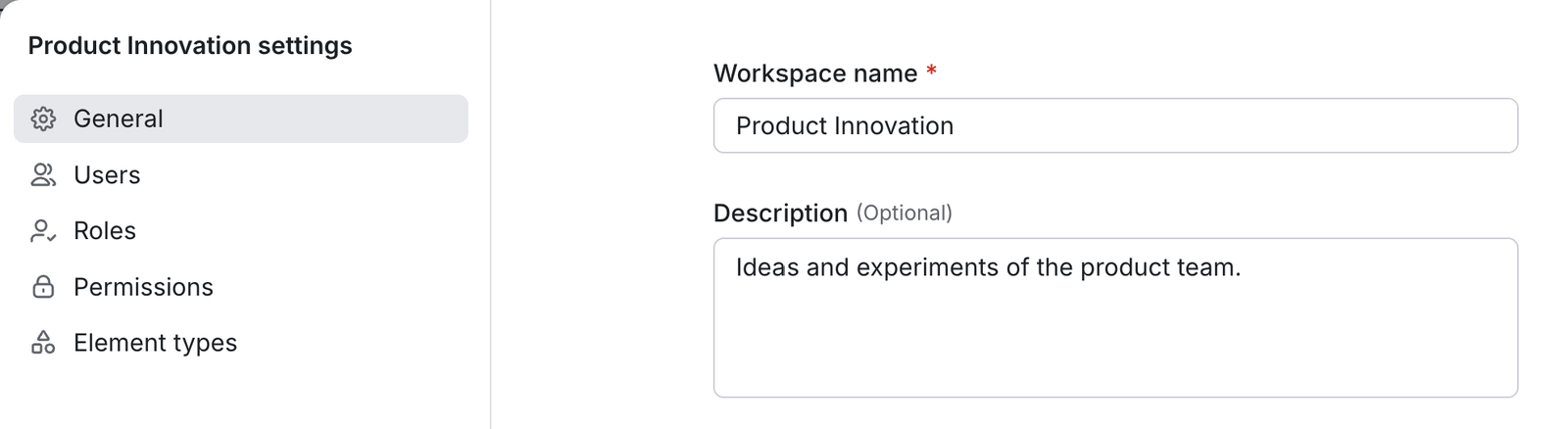
Change the Workspace name or the Description.
The description is optional. To remove it, clear the field.
Click Update.
If you leave General before you click Update, a dialog asks whether to keep editing or discard your changes.
Application Admins can also open the settings of any workspace from the organization settings. See Manage all workspaces. On the same General page, you set who can open the workspace. See Define workspace access: public vs. private.
The sidebar of the workspace settings has more pages:
| Page | What you manage there |
|---|---|
| Users | Who is in the workspace and which roles they have. See Manage workspace users. |
| Roles | The roles of the workspace and the default roles for new users. See Manage workspace roles. |
| Permissions | What each role can do. See Manage workspace permissions. |
| Element types | The element types the workspace uses. See Manage element types in a workspace. |
Each workspace also has a unique ID, its SpaceURI. See Work with SpaceURI and ElementURI.