
Available by default to
Workspace Admin
Open the element types of a workspace to add, change, or delete them. To learn what element types do, see Understanding element types.
Open the element types of a workspace
Click the workspace name in the top left, and select Workspace settings.
Click Element types.
The page lists every element type of the workspace with the number of its elements and properties.
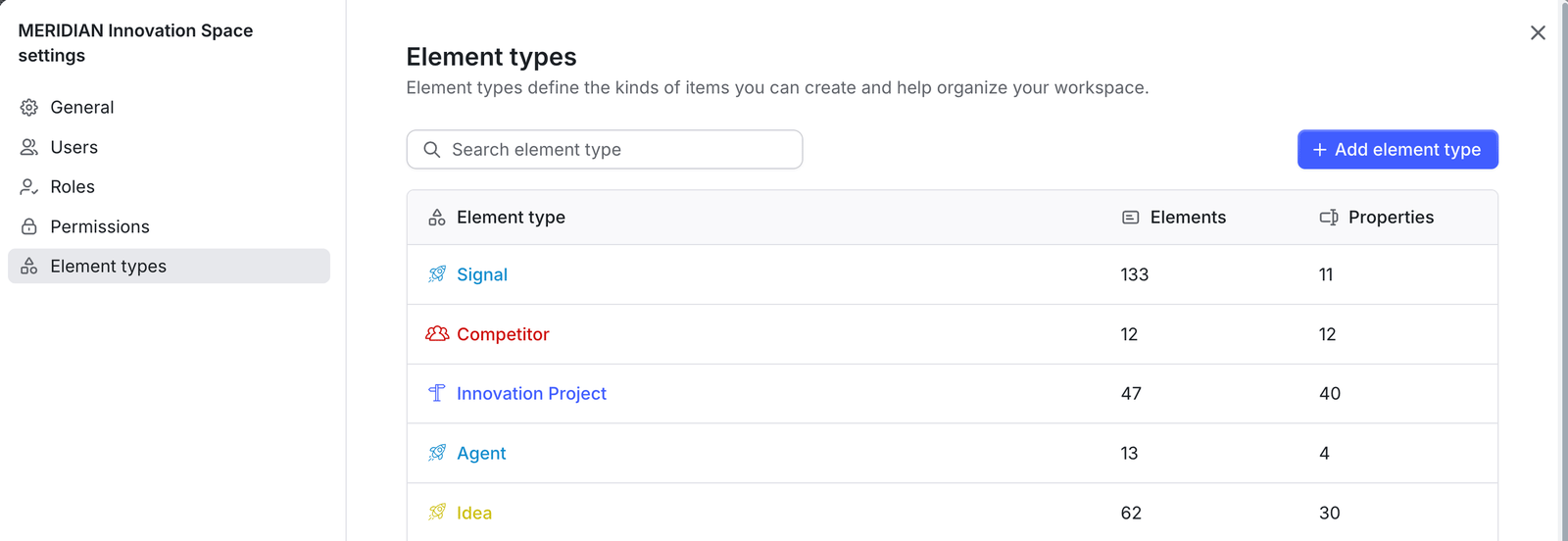
To find an element type, enter its name in Search element type.
Click the name of an element type to open it.
It opens on the Configuration tab.
Each workspace has its own element types. Changes you make here don't affect element types in other workspaces.
From the Element types page and an open element type, you reach these tasks:
| Task | Where | Article |
|---|---|---|
| Add a ready-made element type | Add element type | Create an element type from a template |
| Add an element type from scratch | Add element type | Create a custom element type |
| Change the name, color, icon, or description | Configuration tab | Create a custom element type (same fields) |
| Set up the header, tabs, and details page | Configuration tab, Layout | Configure the layout of an element type |
| Add, change, or remove properties | Details page layout | Create and manage properties |
| Set up a lifecycle | Lifecycle tab | Create and manage lifecycles |
| Add PowerPoint templates | PowerPoint tab | Set up PPT export templates |
| Delete the element type | Configuration tab, Delete element type | Delete an element type |