
Set up a PowerPoint template for an element type, so that its elements can be exported as slides in your own design. For the other ways to export, see Overview of exports.
Before you start
Create the template in PowerPoint first, with the slides, layout, and branding you want. Add a text box wherever a value from ITONICS should appear. Each element type has one template.
Set up a template for an element type
Click the workspace name in the top left.
Select Workspace settings.
Click Element types, click the element type, and open the PowerPoint tab.
The tab lists the properties you can put on a slide, each with its markup, such as EXPORT(TITLE). Attachment properties, tags, and Smart Excel properties aren't listed.
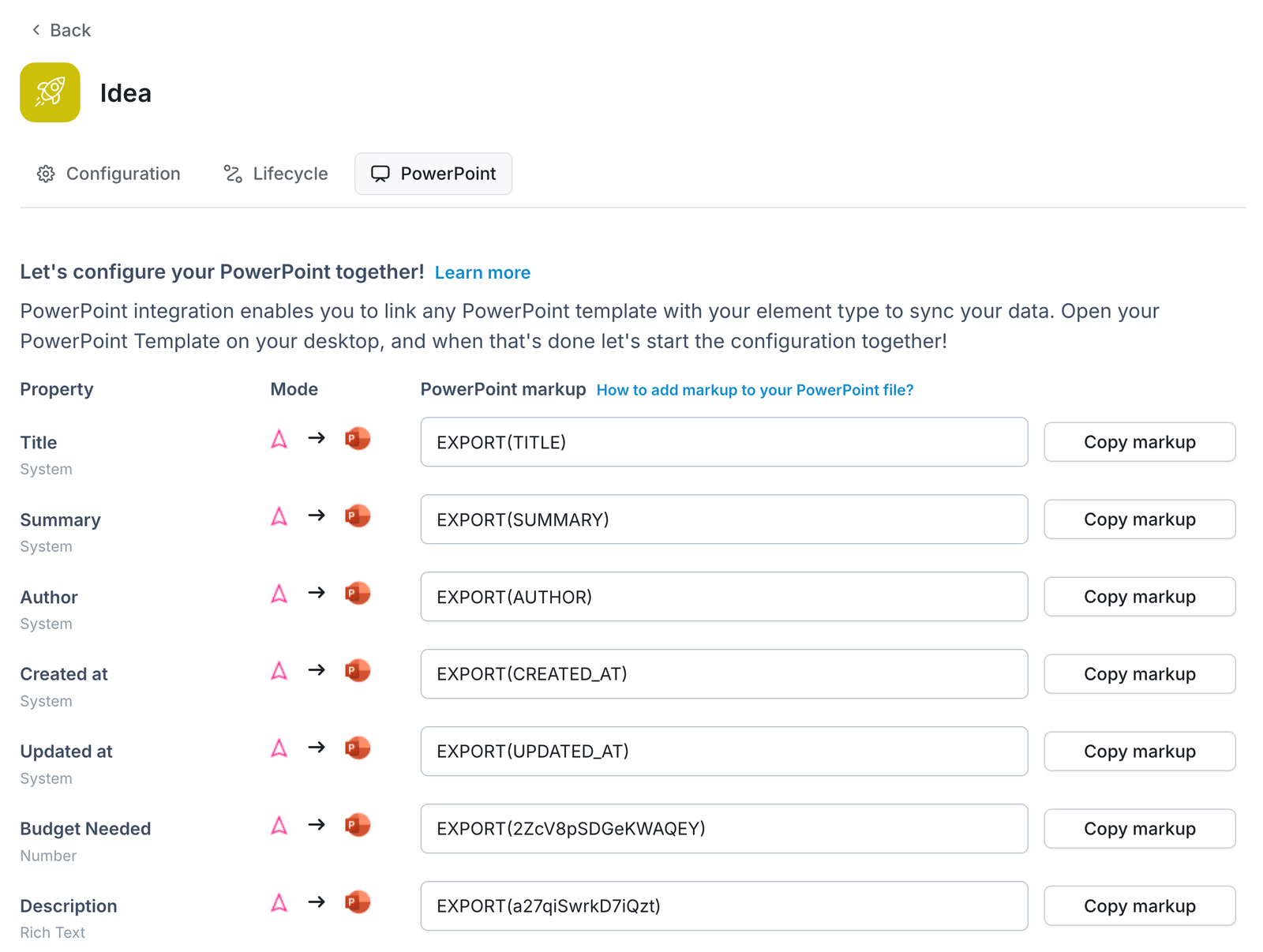
Click Copy markup next to a property.
In PowerPoint, right-click the text box for this value, open its alt text, and paste the markup.
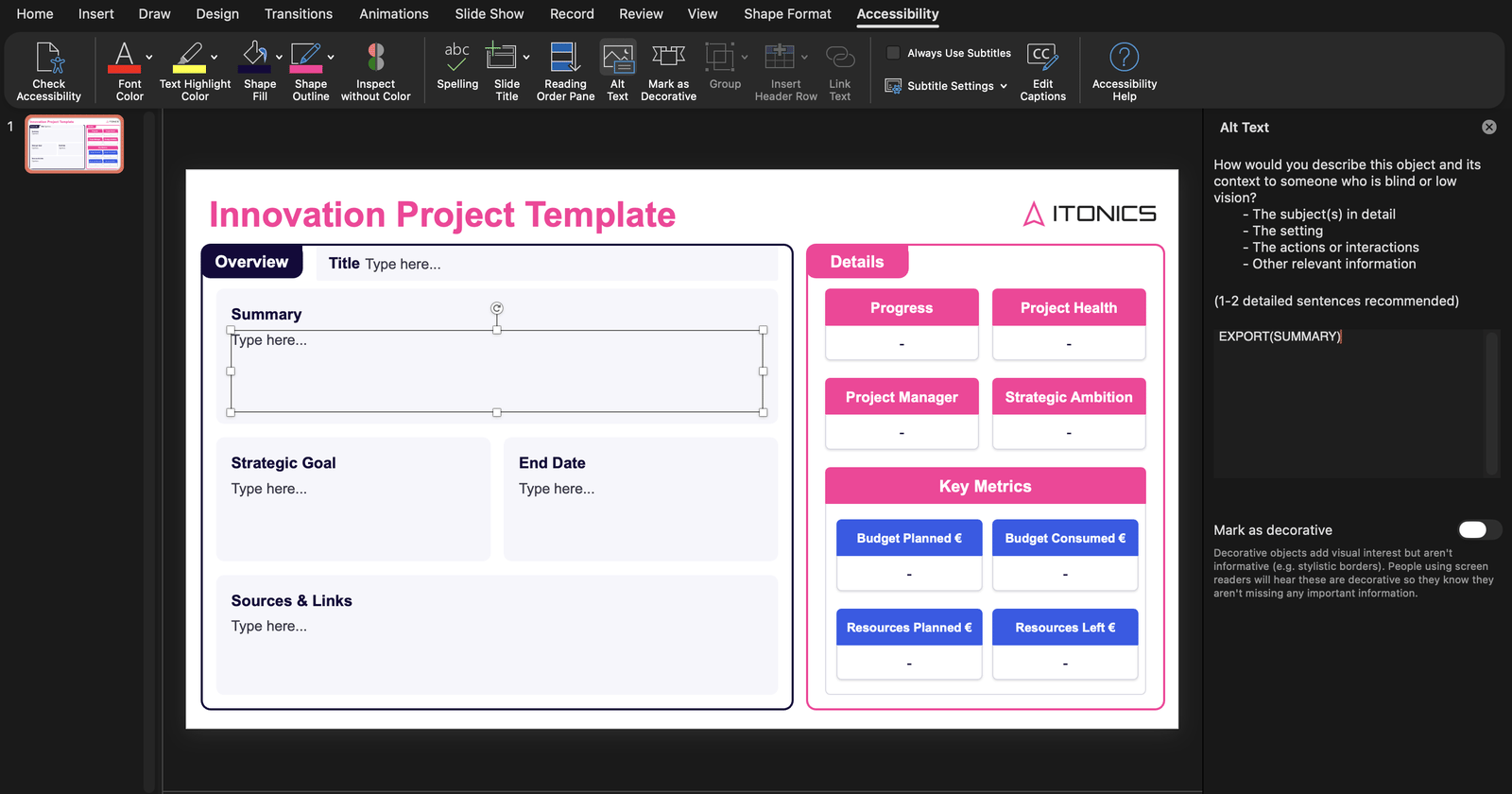
Repeat for each property you want on the slides, then save the file.
On the PowerPoint tab, click Upload your PowerPoint template and select the file.
Upload .pptx or .pptm files (see Supported file formats and sizes). If a markup doesn't belong to this element type, the upload stops. The message lists the text boxes to fix.
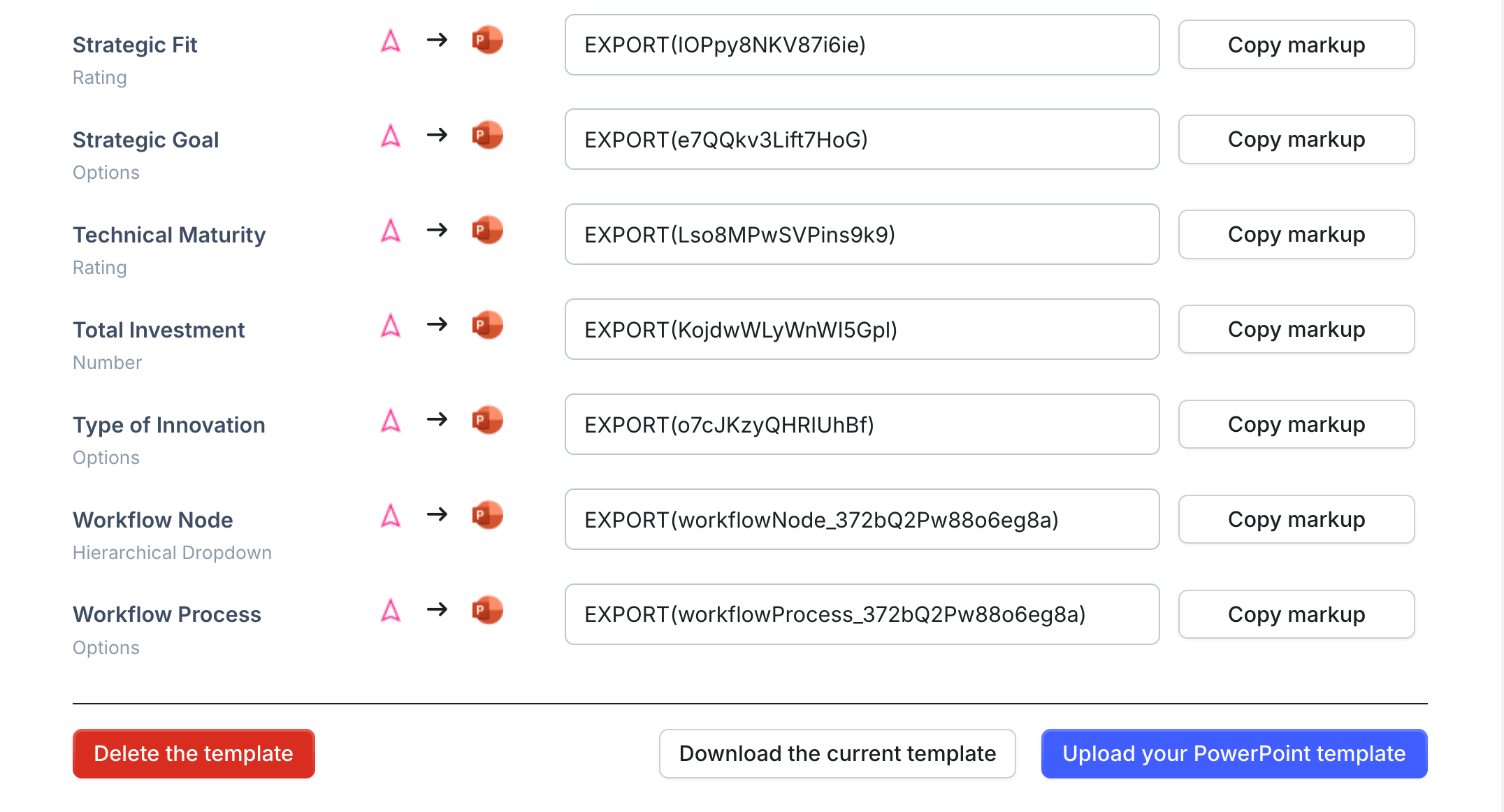
Tip: To change the template later, click Download the current template, edit the file, and upload it again.
Result
The element type's elements get Export as PowerPoint in their menu. To remove the template, click Delete the template on the PowerPoint tab.