
Available by default to
Decide whether everyone in your organization can open a workspace, or only the users you add. For what a workspace holds, see Understanding workspaces.
Change workspace access
Click the workspace name in the top left, and select Workspace settings.
The workspace settings open on General.
Under Workspace access, select Public or Private.
Click Update.
In the dialog, click Update to confirm.
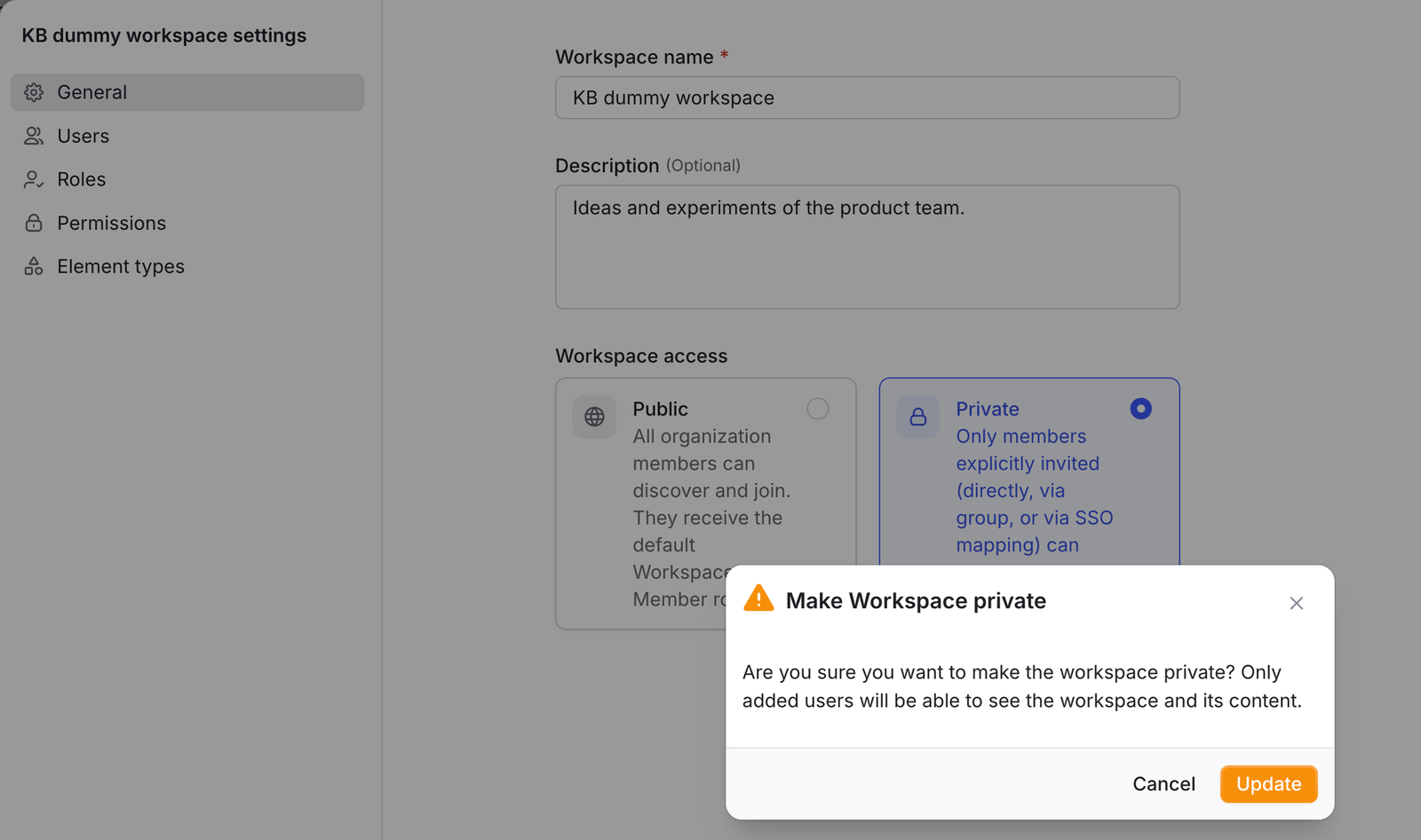
Only Application Admins can change a workspace's access. A new workspace is public by default.
| Access | Who can open the workspace | Who is listed on the users page |
|---|---|---|
| Public | Everyone in the organization. Users without a role of their own get the default role set for the workspace, for example Viewer. | Only users whose roles differ from the default role. |
| Private | Only users added to the workspace, including users added through SSO mapping. | Everyone who can open the workspace. |
When you make a public workspace private, only the users listed on the Users page keep access. Users who only had the default role lose access. To keep them, for example as Viewers, add them on the Users page first. See Manage workspace users.
When you make a private workspace public, users who are already in the workspace keep their roles. Everyone else in the organization gets access with the default role.
Your organization always keeps at least 1 public workspace. In the last public workspace, Private is grayed out, and a note explains why. To make it private, first make another workspace public.
Warning: Making a workspace public shows all of its content to everyone in the organization.
To add users to a private workspace, they must be members of the organization first. The default role doesn't apply in a private workspace, except when an Application Admin invites a new user to the organization and adds them to the workspace directly.