
Move to another workspace in your organization. For what a workspace holds and who can join it, see Understanding workspaces.
Switch to another workspace
Click the name of the current workspace at the top left.
Select Switch workspace.
The list shows your organization's public workspaces and the private workspaces you're a member of.
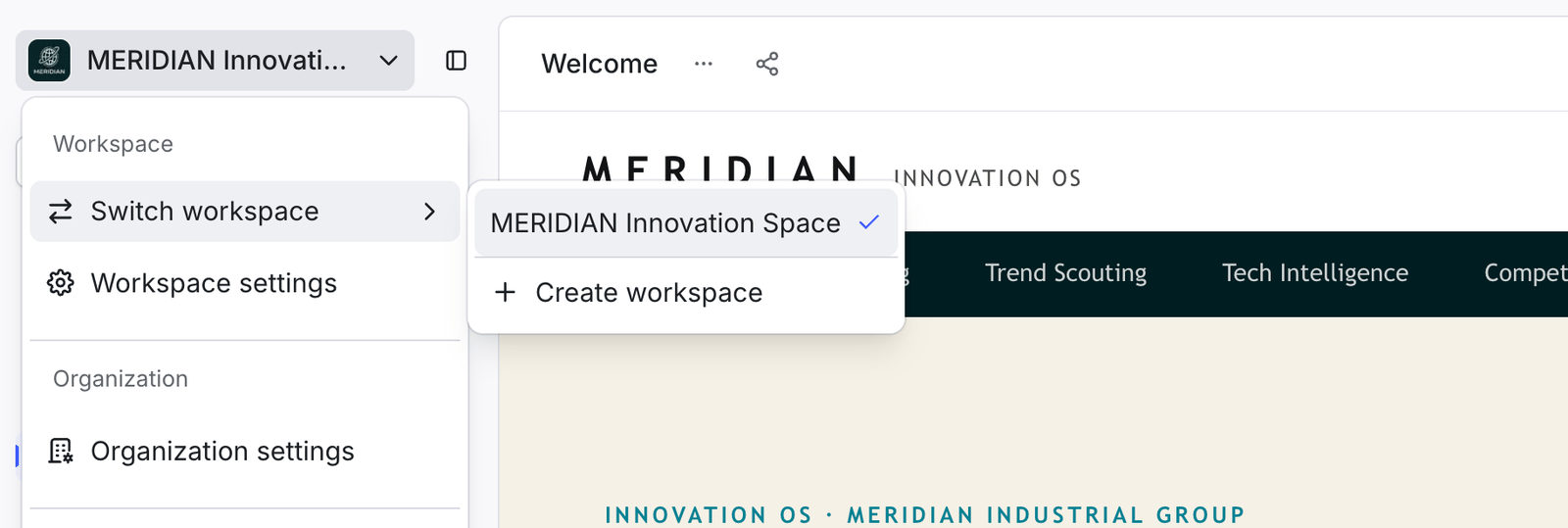
Select the workspace you want to open.
A check mark shows the one you're in. Your role is set per workspace, so what you can see and do may change after you switch.
Result
The workspace opens, and its name shows at the top left.