
ITONICS has two main areas: the sidebar on the left, where you move between workspaces, views, and tools, and the main panel, where you work with the elements of the view or page you opened.
Sidebar
The sidebar is how you get around in a workspace. For each part in detail, see Navigate the main menu. From top to bottom, the sidebar has:
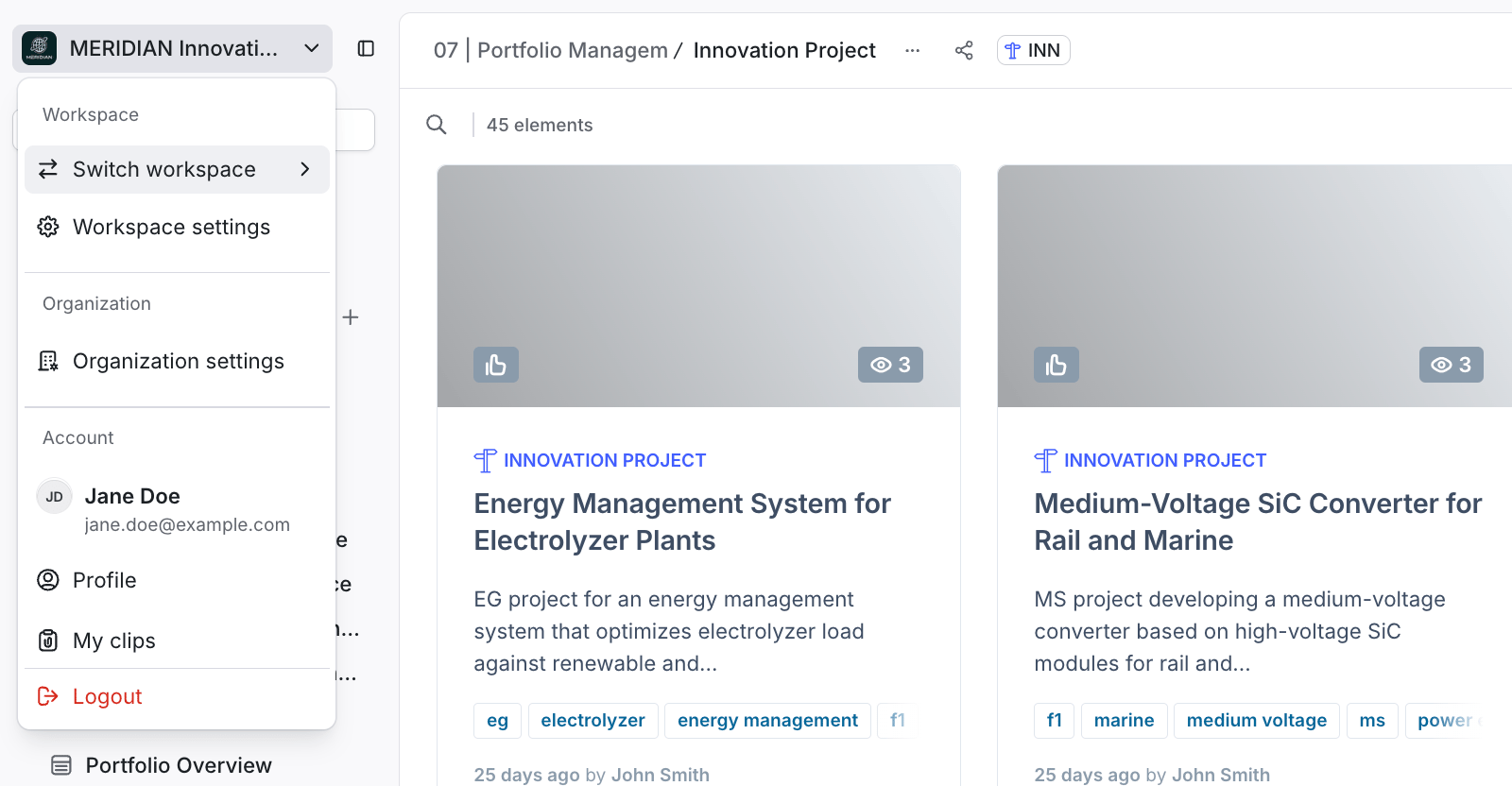
- The workspace menu, under the workspace name. It lets you switch to another workspace, open the workspace and organization settings, and reach your profile and your clips. See Switch workspaces.
- Create, to add an element of one of the workspace's element types, import elements, or copy them from another workspace.
- Search, to find elements by name, see the elements you viewed last, or ask Prism. See Search elements.
- More Tools, which opens tools that aren't views, such as reports, roadmaps, workflows, and sites.
- The workspace views: the folders, views, and pages of the workspace. A folder opens to show the views inside it.
- Legal & Help, at the bottom.
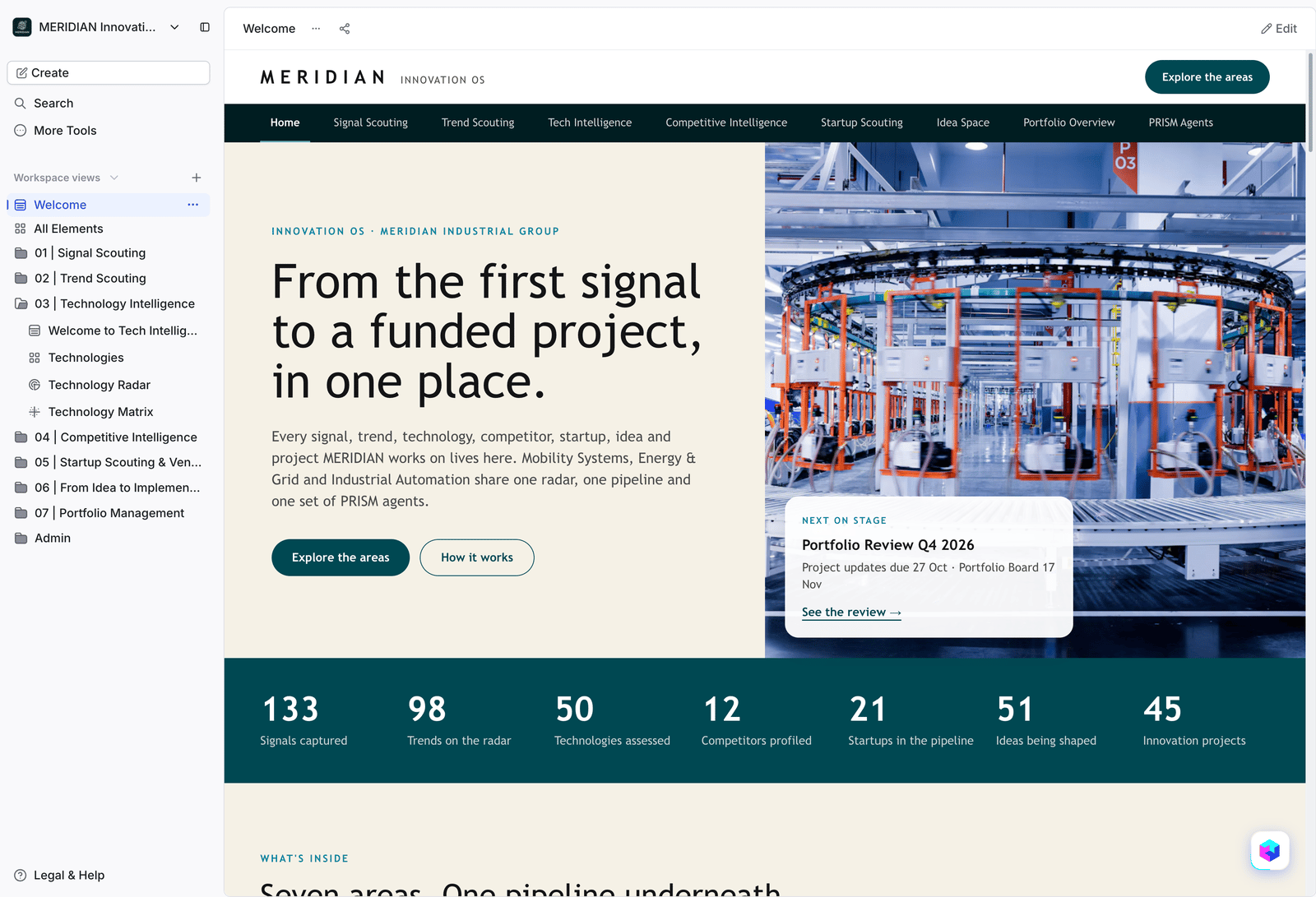
You can collapse the sidebar to give the main panel more room. Click the workspace name to open the workspace menu.
Main panel
The main panel shows the view or page you opened. A view's header shows where the view sits, its menu with options such as sharing, exporting, and duplicating, and controls to search, filter, and sort its elements. Select an element to open its details page.
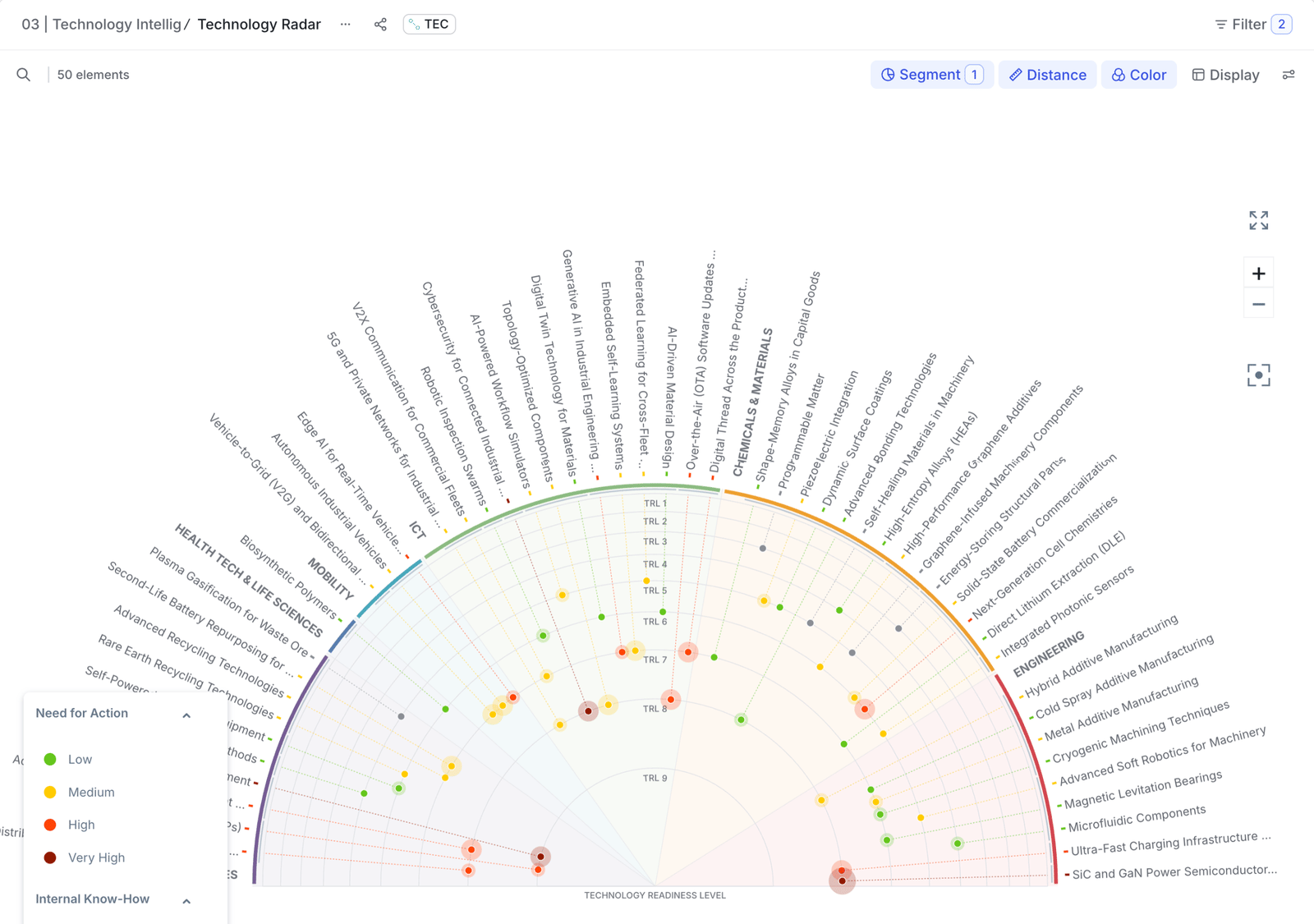
The Prism button in the bottom-right corner opens Prism in a panel next to the view, so you can ask it questions or give it tasks while you work.