
Available by default to
Give everyone who opens a workspace a landing page that explains the workspace and leads them to the right views. To learn what pages are, see Overview of pages.
Set up a landing page
Create a page for the landing page, and turn off Make private.
A private page at the top is a landing page only for you.
On the page, click Edit, and replace the sample content with your own.
A good landing page says what the workspace is for, how your innovation process works, and what to do next, with links to the views people need.
Click Save changes, then Exit edit.
In the sidebar, drag the page to the top of Workspace views.
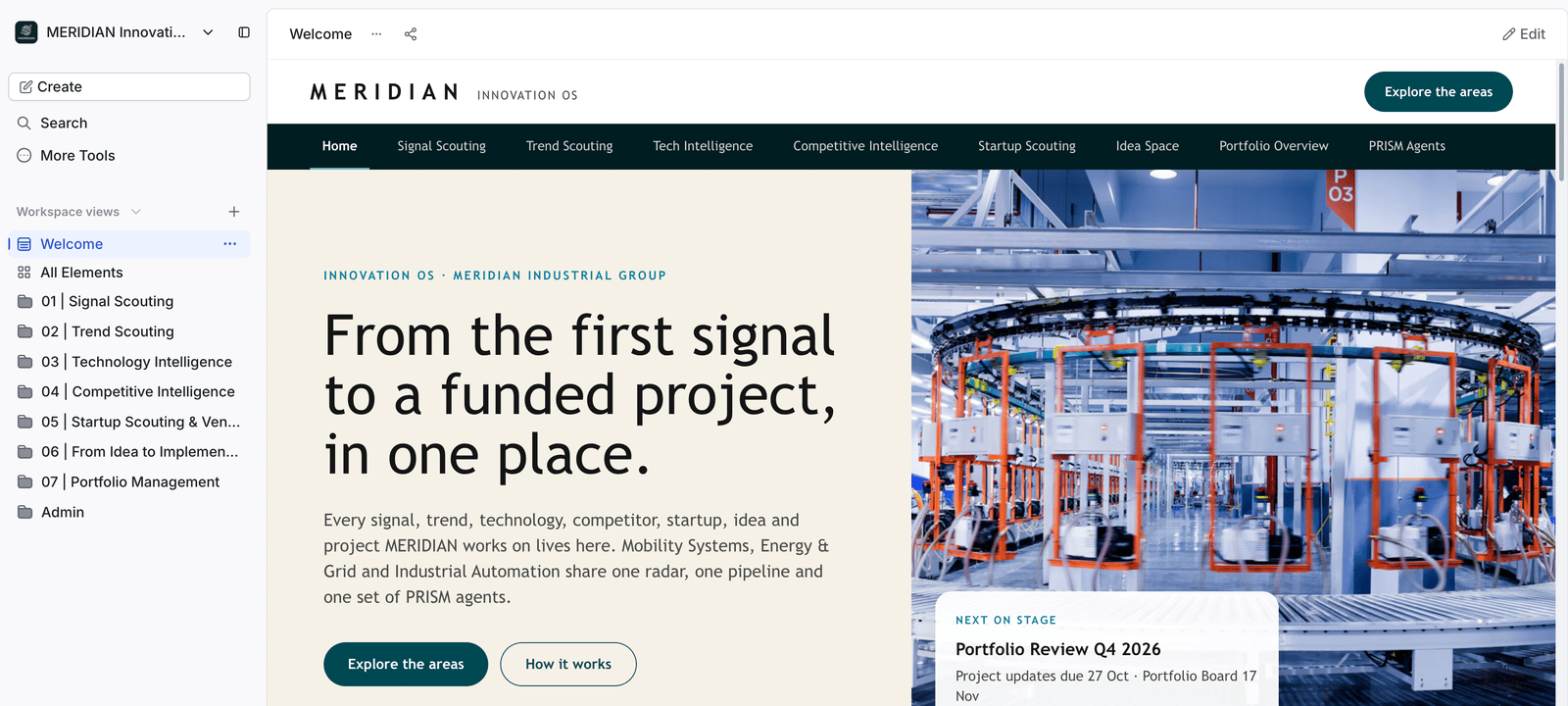
To create pages and write their HTML, see Create and manage pages. To have an AI assistant write the landing page, add a description like this one after the code editor rules from that article:
Now, create a landing page for an innovation workspace at [company_name]. Add a short introductory paragraph describing the organization's innovation ambition and focus areas. Structure the page into clearly separated sections using headings. Include a section that explains how innovation is managed end to end, for example foresight, ideation, and portfolio. Add a section that explains what users should do next, for example explore trends, submit ideas, or review initiatives. Include a section with quick links or call-to-action placeholders that can later point to specific views or elements. Use concise, neutral language suitable for internal enterprise users. Style the HTML so that it looks professional and modern, and follow the uploaded style guide to align with the company's online presence.
Result
Everyone who opens the workspace through its link lands on the page. Any view at the top of Workspace views becomes the landing page; a page lets you design it. To change the order of the navigation, see Configure workspace navigation.