
Group views and pages in folders in the workspace navigation. To learn how folders and views work together, see Understanding views and folders.
Create a folder
In the sidebar, click the plus icon at the top of the workspace navigation, and select Folder.
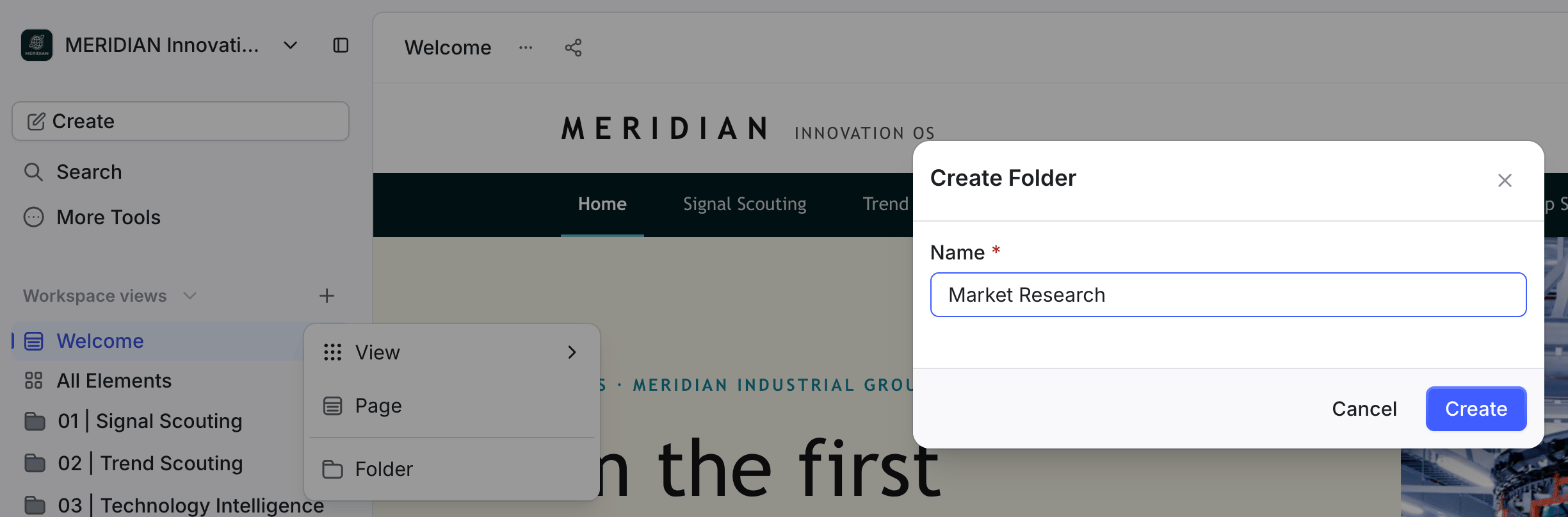
Under Name, enter a name for the folder, and click Create.
The folder appears at the end of the workspace navigation.
To add a view or a page to the folder, point to the folder, click the plus icon next to it, and select Page or a view type.
To move an existing view into the folder, select the folder in the view's settings. See Create and manage views.
To manage a folder, point to it in the sidebar and click the more icon next to it:
| Action | What it does |
|---|---|
| Add to favorites | Adds the folder under Favorites at the top of the sidebar. Favorites are personal: only you see yours. To take the folder out again, select Remove from favorites. |
| Folder settings | Opens the folder's name to change it. |
| Delete Folder | Deletes the folder. The views in it, including private views you can't see, move to the top level of the workspace navigation. You can't undo this. |