
Archive elements you no longer use but want to keep, or delete elements you don't need at all. To learn about the publication statuses, see Understanding elements.
Before you start
You need permission to edit or delete the elements, for example to edit or delete all elements or only your own. See Manage workspace permissions.
Archive and delete elements
Archive an element
Open the element.
In the header, click the publication status and select Archived.
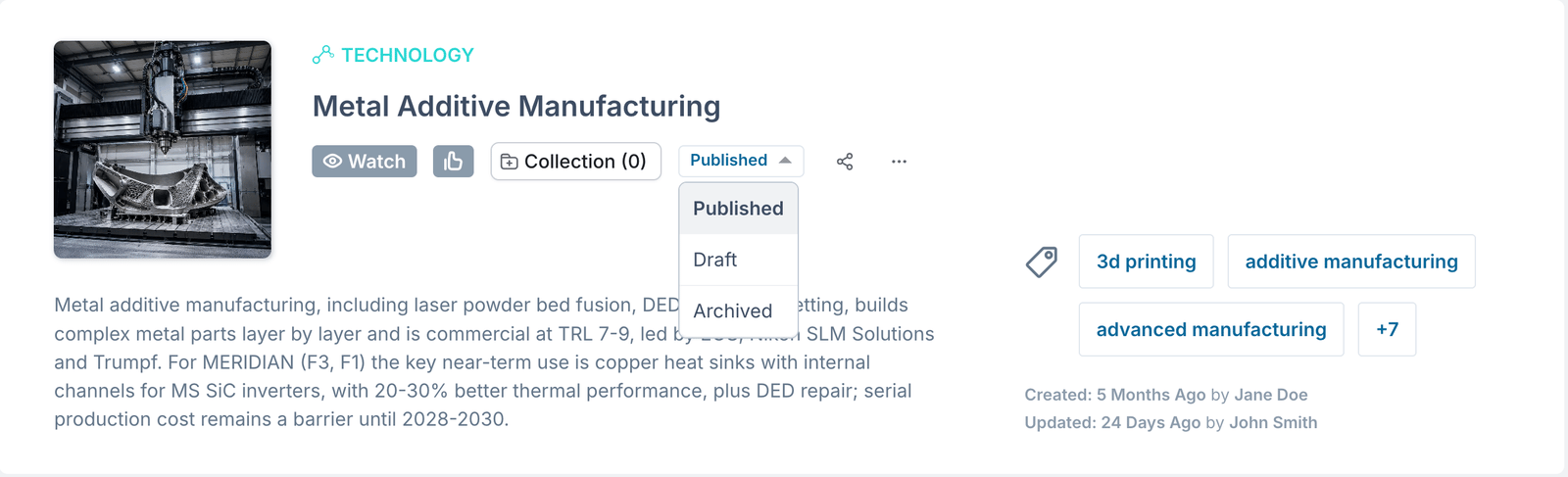
Click Archive to confirm.
Delete one element
Open the element.
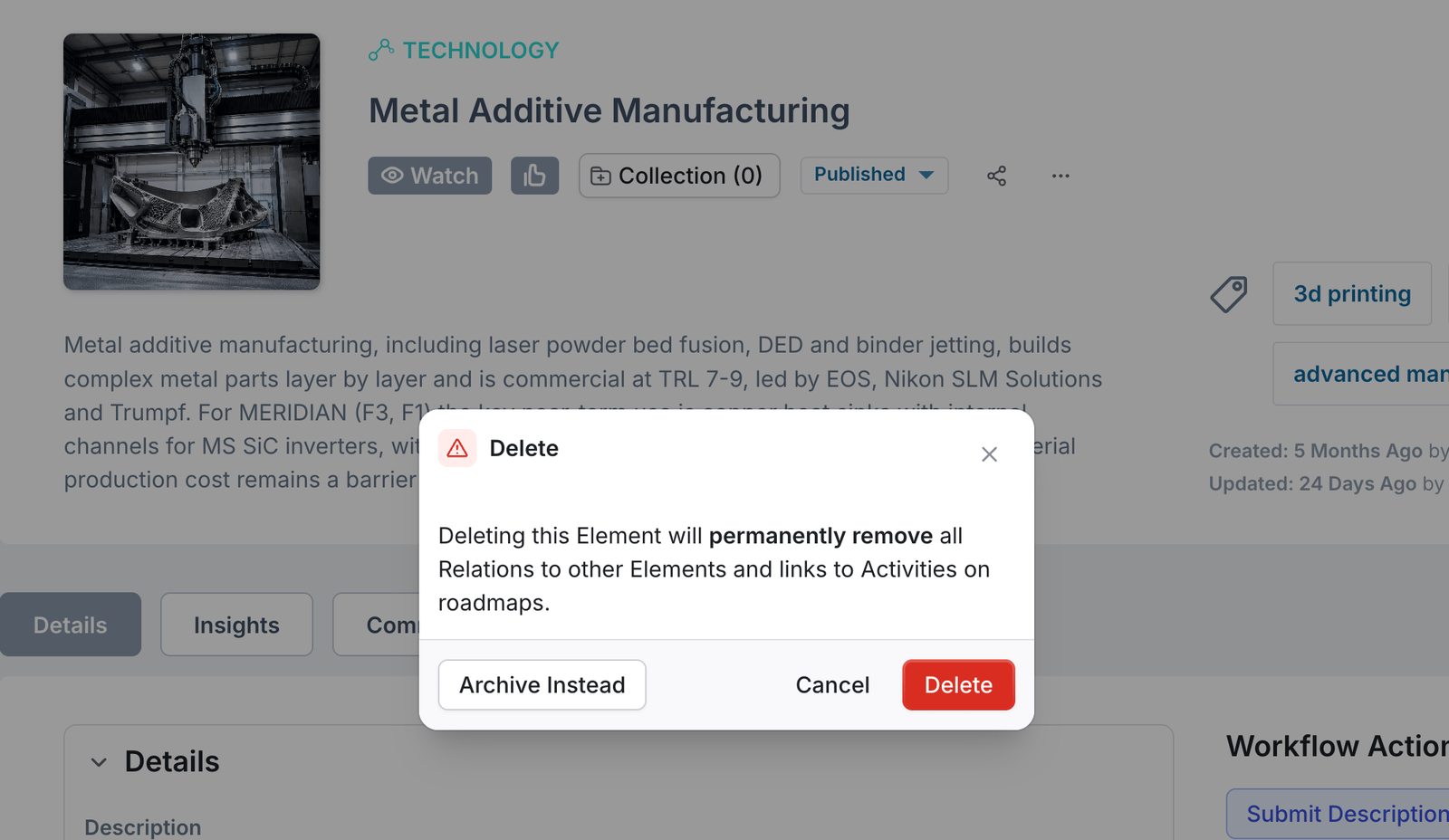
In the header, click the more menu and select Delete Element.
Click Delete to confirm.
To keep the element after all, click Archive Instead. An element that's already archived doesn't show this option.
Delete several elements
In a view, select the elements you want to delete.
A bar at the bottom shows how many elements you selected.
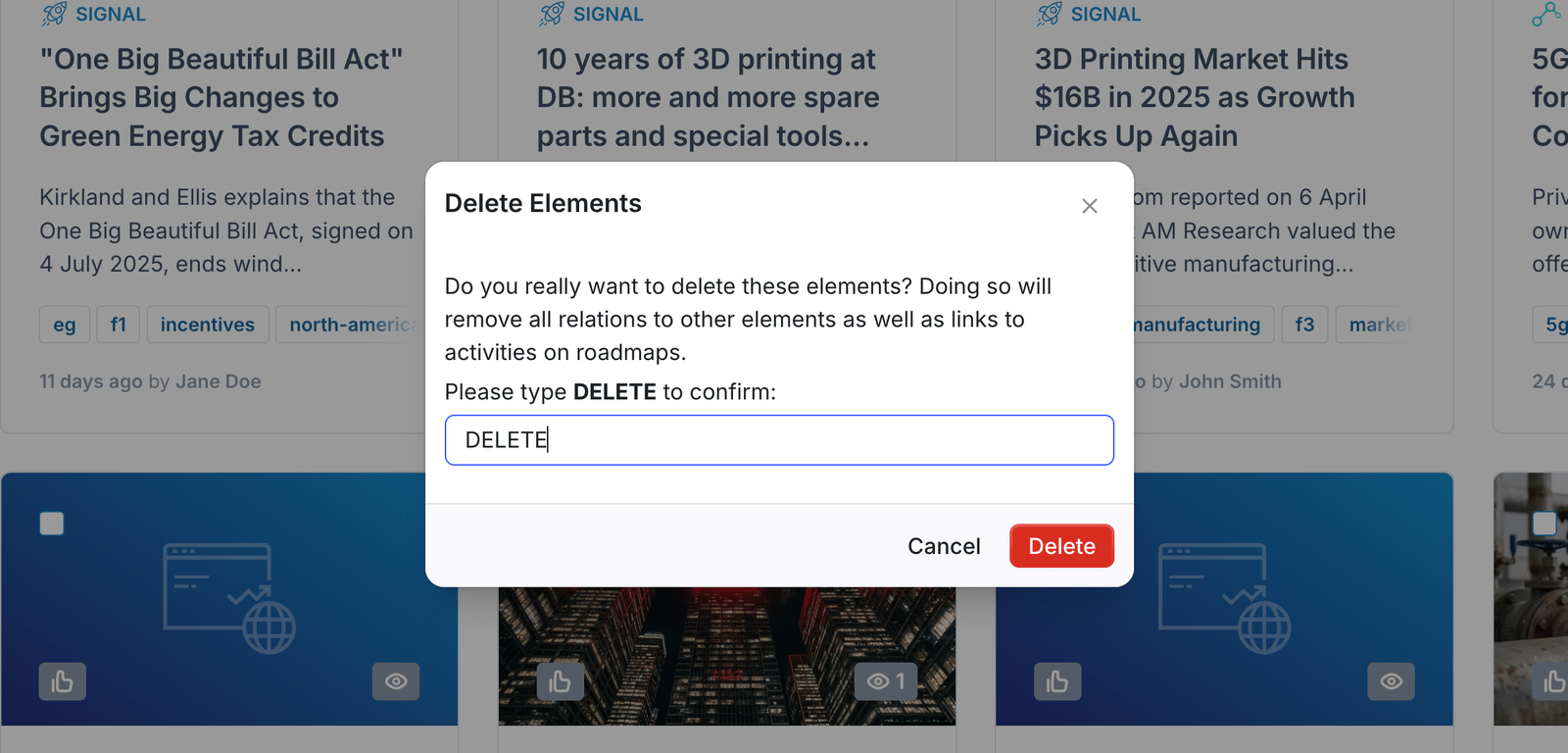
In the bar, click Delete with the number of elements, for example Delete 3 elements.
Enter DELETE and click Delete to confirm.
Warning: Deleting an element permanently removes all its relations to other elements and its links to activities on roadmaps.
Result
An archived element stays in the workspace with the status Archived and disappears from views that show only published elements. To use it again, set its status back to Published and click Publish to confirm. Deleted elements are removed from the workspace and from every view. For the other actions on several selected elements, see Set up a grid view.