
Collect elements in a list you pick by hand, for example a shortlist, instead of finding them through filters. A collection can then be shown in any view.
Use collections
Add an element to a collection
Open the element and click Collection below its title.
This works in the stack and on the details page. The number next to it shows how many collections the element is in.
Select one or more collections, or type a name and select Create new collection to add a new one.
A new collection is unlisted: only you can see and edit it.
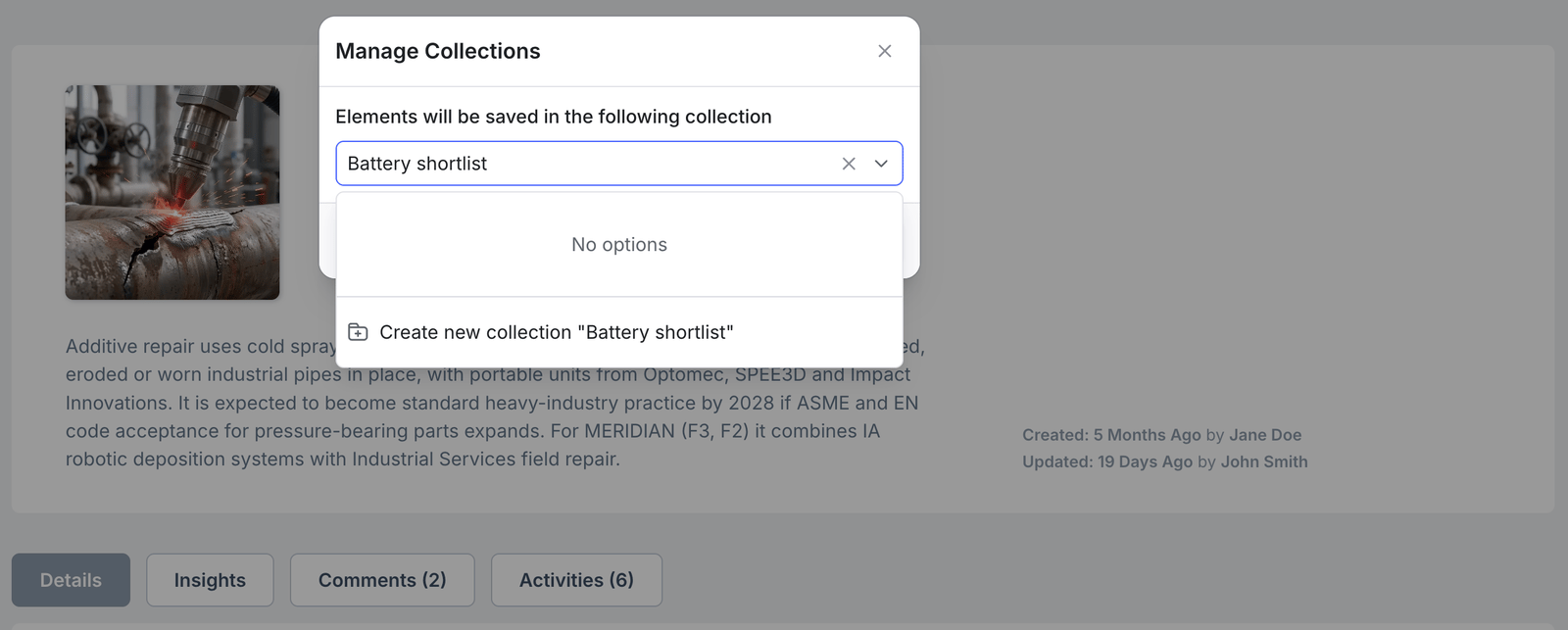
Click Save.
Show a collection in a view
In a view, click Filter, then Global Filters, and select Collections.
Select the collection, then click Save changes.
The view now shows the elements of the collection. An unlisted collection works too: everyone who can open the view sees its elements, so unlisted doesn't mean private.
Edit or delete a collection
On an element, click Collection and open the list of collections.
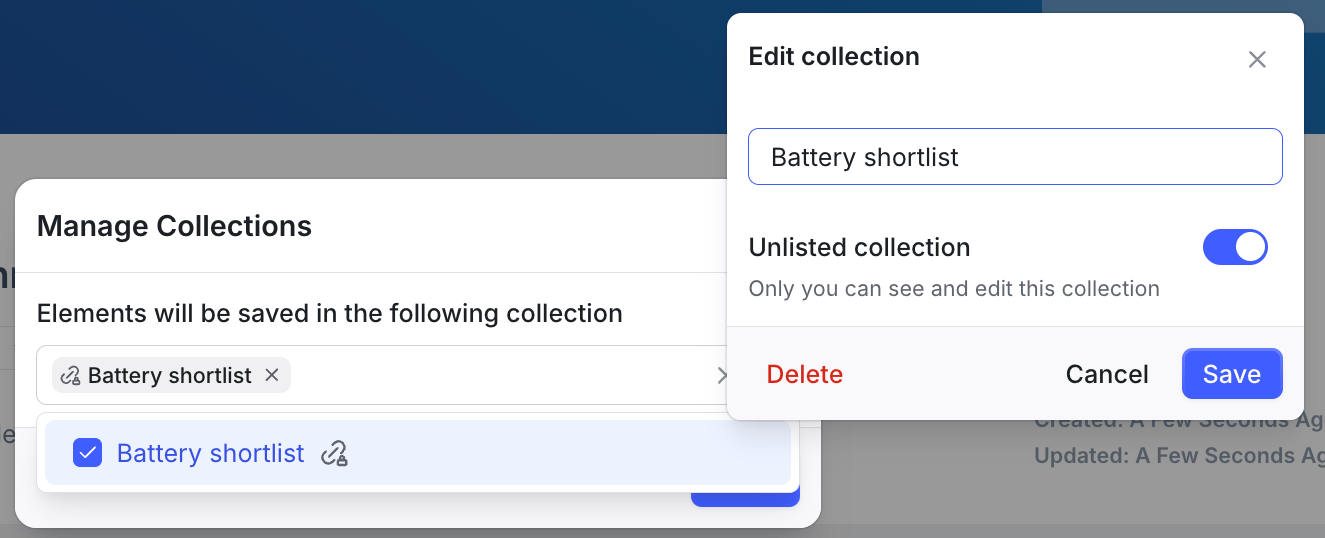
Point to the collection and click the pencil icon.
Change the name, or turn off Unlisted collection so everyone can see it, edit it, and add elements to it. Then click Save. To remove the collection, click Delete.
Deleting a collection doesn't delete its elements, and there's no confirmation.
To add several elements at once, select them in a grid or table view (the checkbox on a card or row), click Add to collection in the bar at the bottom, then select or create the collection and click Save.
In a table view, you can also add a row to a collection from its row menu; see Edit data in table views. To keep the views of your collections together, put them in a folder of their own; see Understanding views and folders.