
View an element's Insights perspectives and update the analysis when you need current results. To learn about elements, see Understanding elements.
Before you start
The element type needs an Insights agent with at least 1 perspective. See Create and manage Insights agents. To start a new analysis, you need edit rights on the element.
View and refresh Insights on an element
Open the element's details page and click the Insights tab.
If the element hasn't been analyzed with the current configuration, Prism starts now. It writes all of the type's perspectives at once, and each shows Analyzing... until its answer is ready.
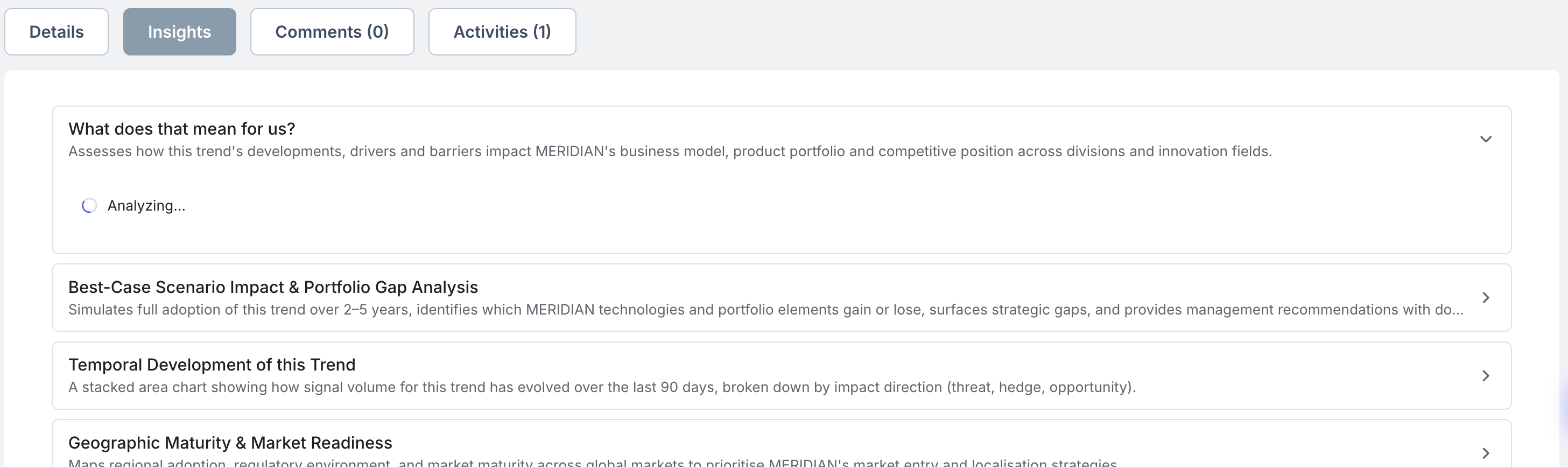
Click a perspective's title to expand or collapse it.
Perspectives set to expand by default are open when you arrive.
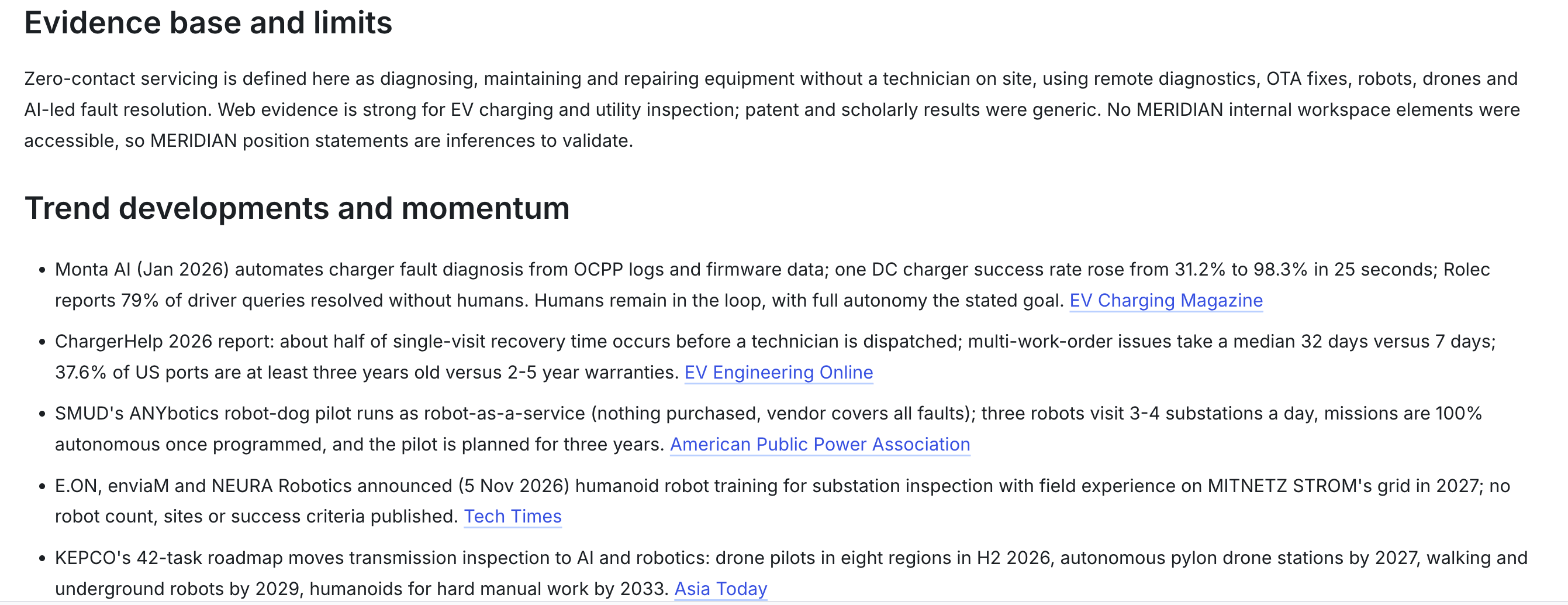
Click a source link in a finding to open the patent, paper, or article behind it.
Optional: Use the icons above a chart or diagram.
Copy image copies it, Download as… saves it as a file, such as PNG or SVG, and View fullscreen enlarges it. Diagrams also have Zoom in, Zoom out, and Reset view.
Check when the element was last analyzed.
The bottom of the tab shows it, for example Last analyzed 19 hours ago. Insights don't refresh on their own.
To update the results, click Re-analyze at the bottom of the tab.
Prism researches the sources again for every perspective and shows the new answers to everyone who opens the tab.
Result
The perspectives show the latest analysis. To change what they cover, click Configure insights agents next to Re-analyze.