
Convert an element to another element type, for example an idea into an innovation project, and keep the values both types share. To learn what element types are, see Understanding element types.
Before you start
You need permission to view the element and to create and edit elements of the new type. To archive the original element, you also need permission to edit it.
Convert an element
Open the element in the stack view or on its details page.
In the header, click the more menu and select Convert Element.
Under Convert Element to, select the new element type.
The list shows the other element types of the workspace.
Optional: Select Archive Original Element to archive the original element after the conversion.
Optional: Select Copy All Comments to copy the comments to the new element.
Optional: To link the new element to the original one, select Preserve relation to original element and select a Relation field.
The list shows the relation properties of the new type that accept the original element's type. If the new type has a Relates to property, it's selected by default.
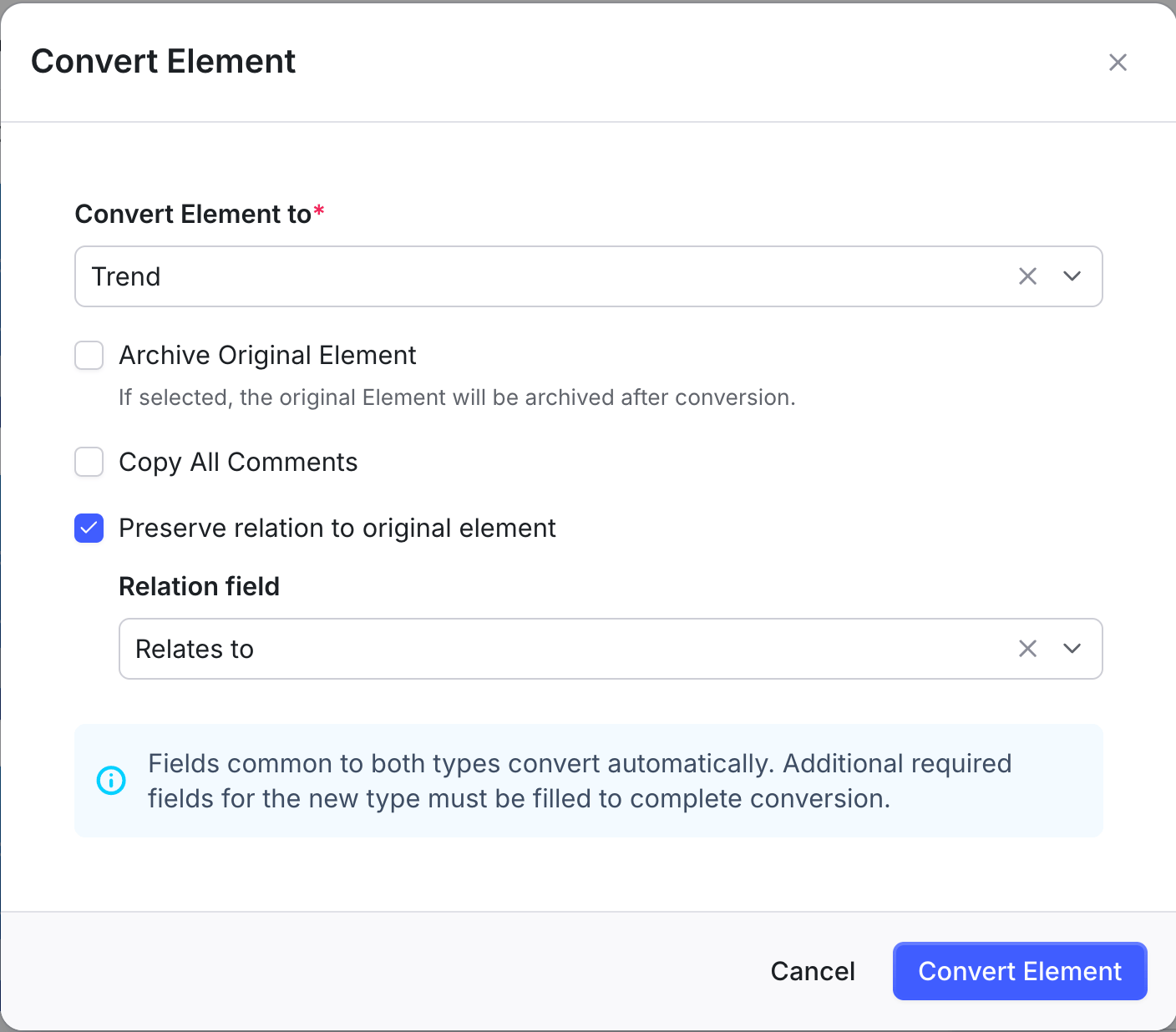
If the new type has required properties that the original element doesn't have, fill them in.
Click Convert Element.
The conversion can take a few seconds.
Note: Only the values of properties that both element types share are converted. Values of other properties aren't copied to the new element.
To convert elements automatically as part of a workflow, see Automation nodes.
Result
A new element of the selected type is created with the shared values, and a message confirms the conversion. The original element stays in the workspace, with the status Archived if you selected that option.