
Show content from another tool inside a rich text property, for example a video, a whiteboard, or a form. To learn what else a rich text property holds, see Rich text properties.
Before you start
You need permission to edit the element, and the link to the content you want to embed. Many tools offer this link in their share or embed options.
Embed content in a rich text property
Embed content from a link
On the element's details page, click into the rich text property.
The editor and its toolbar open.
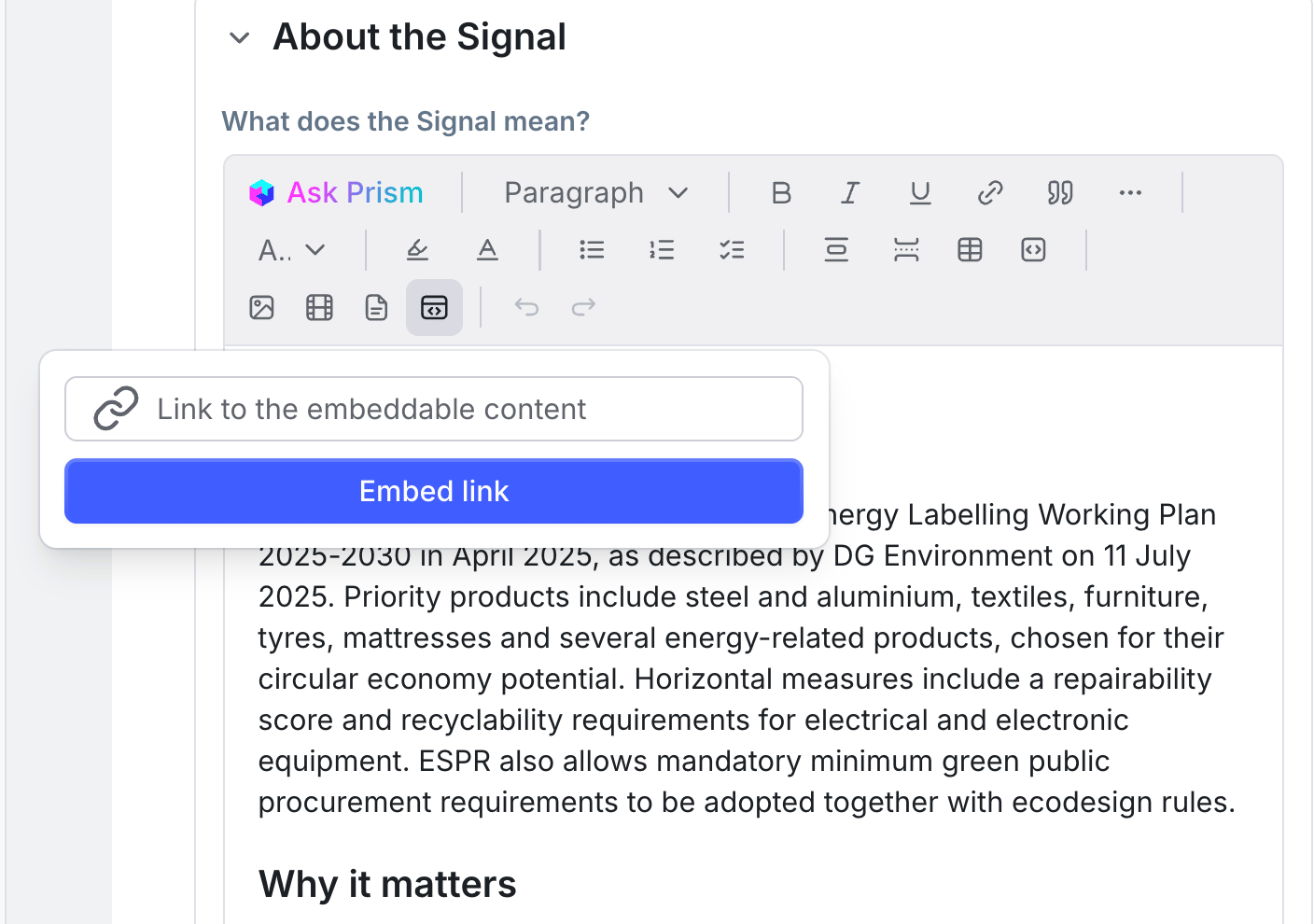
Click the embed icon in the toolbar.
It's the last icon in the group with the image, video, and file icons.
Paste the link into the field and click Embed link.
The content shows in the text.
Optional: To change the size, click the content and drag the handles at its edges.
Below the selected content, one icon opens the content in a new browser tab, and the other removes it.
Click Save.
Embed a video
In the editor's toolbar, click the video icon.
Click the Embed tab, paste the link to the video, and click Embed link.
To add a video file from your computer instead, use the Upload tab. A video file can be up to 100 MB.
Click Save.
You can embed content from tools such as Miro, Mural, YouTube, Vimeo, Microsoft Forms, Google Docs, Slides, Sheets, or Forms, and ITONICS radars or roadmaps. To get the link to an ITONICS radar or roadmap, see Embeds and external access.
Result
The content shows in the rich text property, and everyone who opens the element can use it there, for example play the video.