
Available by default to
Export the elements of a view to Excel to analyze them in a spreadsheet or to update them in bulk. For the other ways to export, see Overview of exports.
Before you start
The export contains the elements the view shows. To export all elements, use a view without filters. To export only some elements, filter the view first: the export follows the filters, also ones you haven't saved. See Filter elements.
An export holds up to 1,000 elements of each element type. For more, filter the view to export the elements in parts.
Export a view to Excel
Open the view.
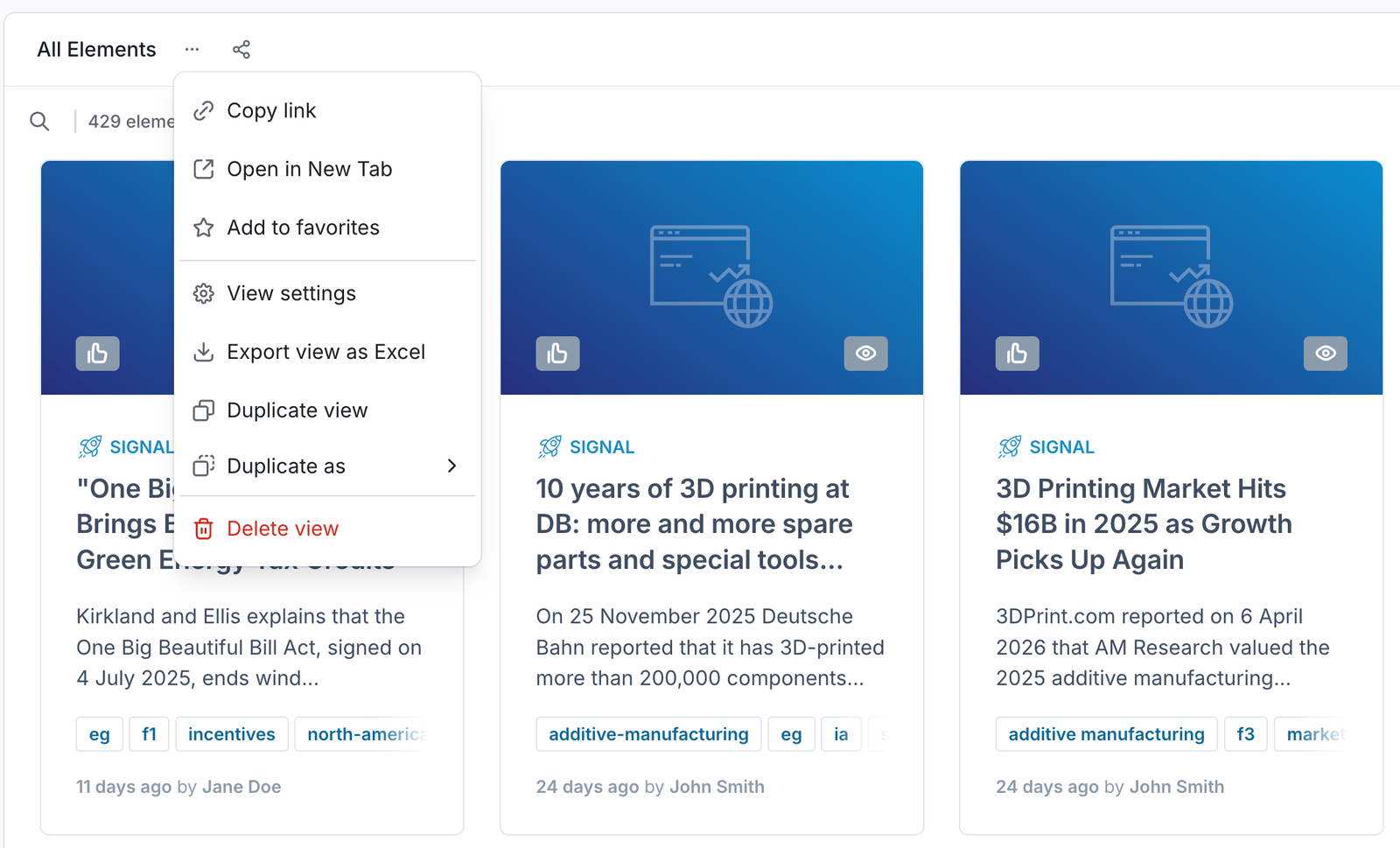
Click … next to the view name and select Export view as Excel.
In radar and board views, select Export... > Export view as Excel.
Open the email "Your Excel exports are ready to download" and click the name of the element type.
The email has one link for each element type that the view shows. The link opens a download page that starts the download. If it doesn't start, click the link on the page.
Result
You get one .xlsx file per element type. The links work for 7 days. After that, the download page says the link has expired, and you export the view again. To change the elements in the file and import them again, see Bulk update elements via Excel import.