
Let Prism suggest a description or tags for an element, based on what the element already says. To learn what else Prism can do, see Overview of Prism.
Before you start
You need permission to edit the element. Autofill Description is only offered when the element type has a description property.
Autofill the description or tags
Open the element's details page.
In the header, click the Smart Actions icon.
Select Autofill Description or Autofill Tags.
Prism writes its suggestion in a dialog. For tags, you can also click Autofill Tags next to the tag field in the tags section.
Check the suggestion.
Remove tags you don't want with their ×. For a different suggestion, click Regenerate.
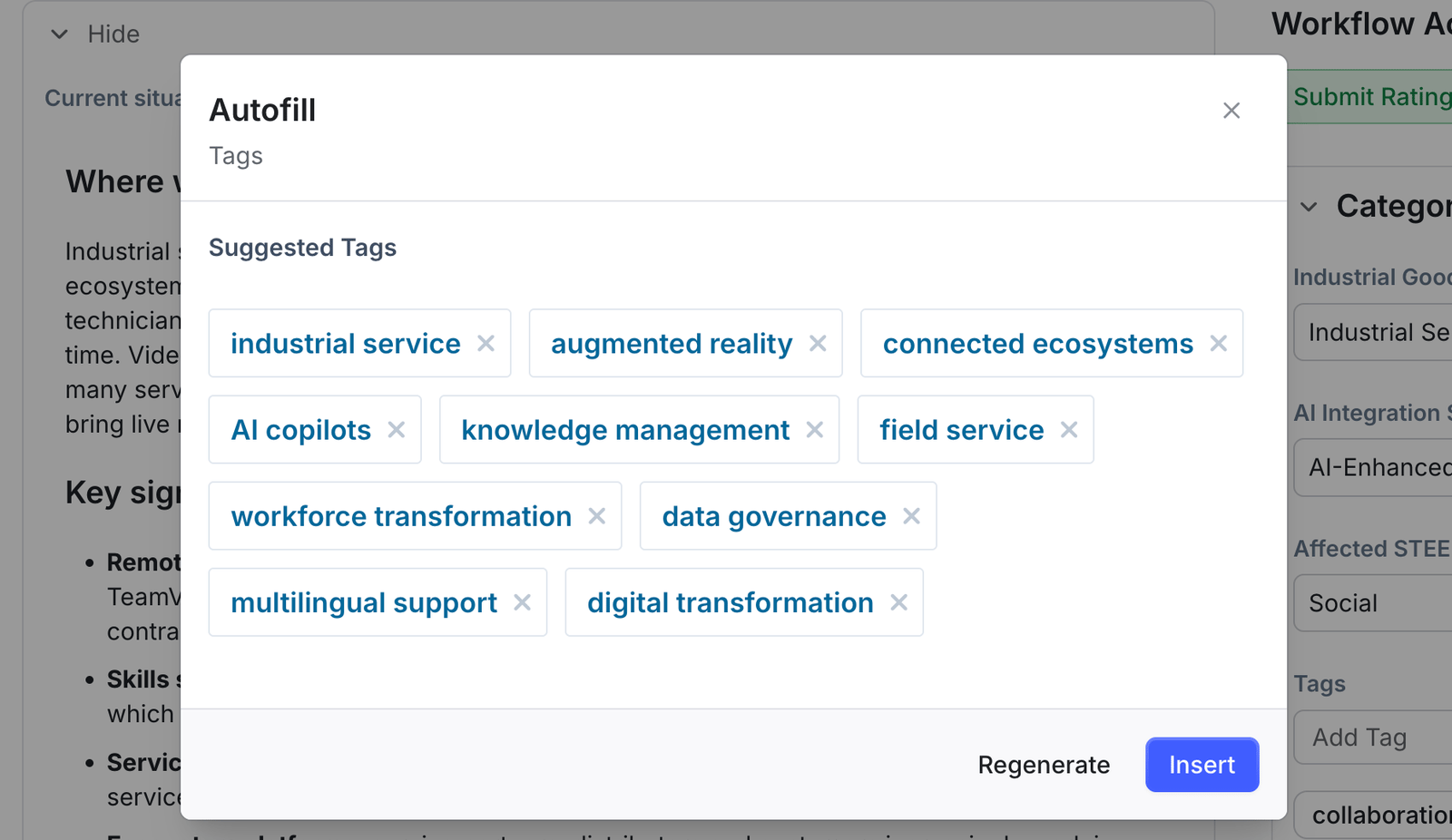
Click Insert for tags, or Continue for the description.
A suggested tag that already exists in the workspace is merged with that tag, so no duplicates are created.
Result
The element shows the new description or tags. You can also ask Prism in the chat to suggest tags for one or more elements. See Use the Prism chat and queue requests.