
There are several ways to get content into ITONICS: one element at a time, many at once from a spreadsheet, from another workspace, with Prism, from other systems, or from the web. Most of them start from Create in the sidebar.
Set up your element types first
Every element belongs to an element type, and the element type decides which properties you can fill in. Set up your element types and their properties before you add content, whichever way you use, so every value has a place to go. See Understanding the ITONICS data model and Design your data model.
Ways to add content
| Way | Use it for | Article |
|---|---|---|
| Create an element | Single elements, one at a time | Create an element |
| Import from Excel | Many elements at once, from a spreadsheet | Import data via Excel |
| Copy from another workspace | Elements that another workspace already has | Copy elements to another workspace |
| Prism | Elements that AI drafts from your request | Create an element with Prism |
| ITONICS Cloud API | Regular transfers from other systems | Overview of the ITONICS Cloud API |
| Webclipper | Web pages you find while browsing | Clip content from the web |
Which of these you see under Create depends on your permissions in the workspace.
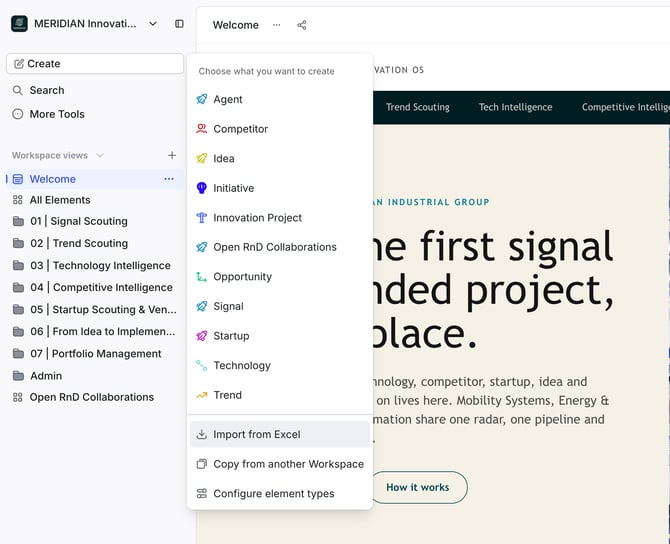
Import from Excel
The Excel import creates many elements of one element type at once. You download a template for the element type, fill it in, and upload it as an .xlsx file (see Supported file formats and sizes). ITONICS checks the file before it creates the elements, so you can fix problems first. One file holds up to 900 rows.
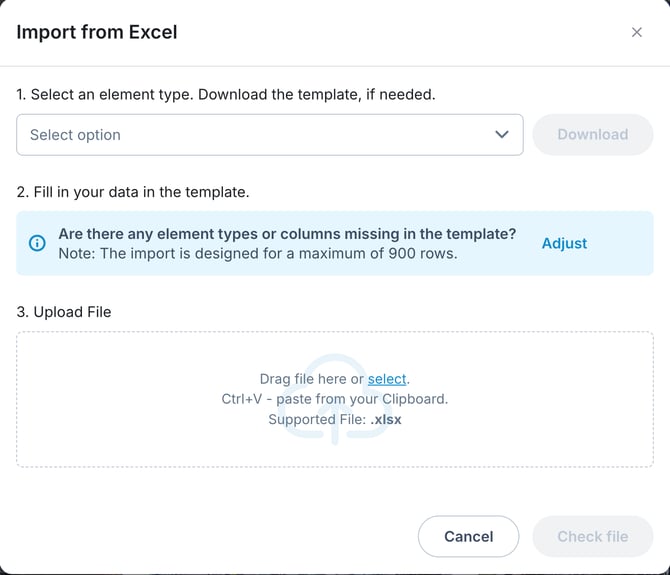
If an element type or a column you need is missing from the template, click Adjust in the import dialog.